
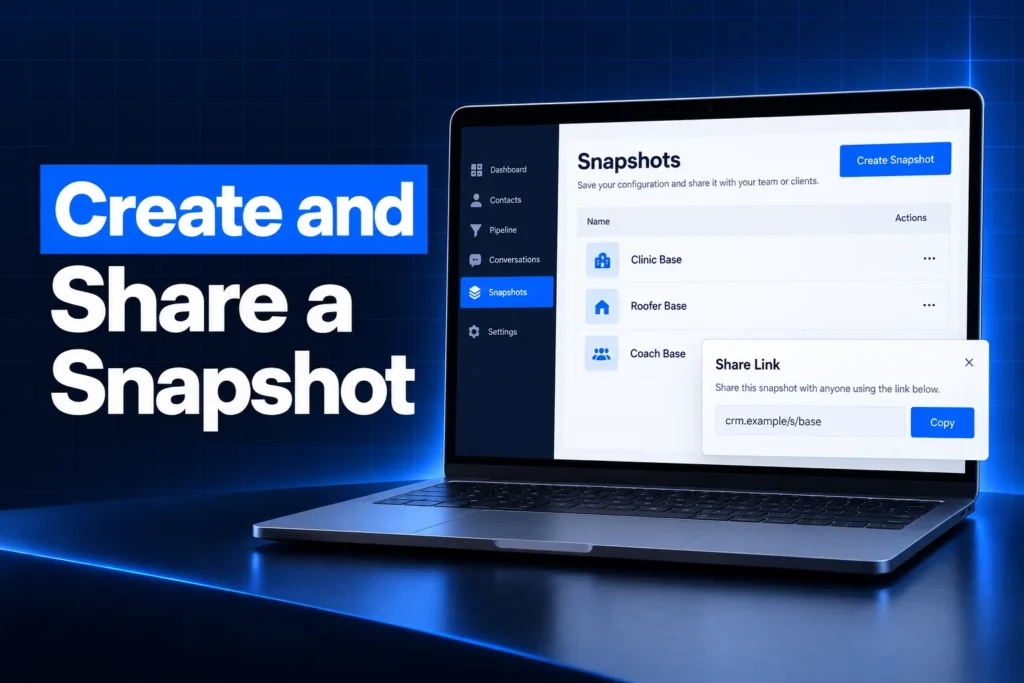
To create a snapshot in GoHighLevel, build a clean template sub-account first, then go to Account Snapshots in agency view, click Create New Snapshot, name it, pick the source sub-account and choose which assets to include. You share it with a link and push later changes to client accounts with Refresh and Push Update.
This guide covers what a snapshot saves and what it leaves behind, how to prepare the template account, how creation works, which share link to use, how updates reach accounts that already loaded it, and the mistakes that break snapshots after they ship.
What does a GoHighLevel snapshot save, and what does it leave out?
A GoHighLevel snapshot saves the build of a sub-account: workflows, pipelines, calendars, forms, funnels and websites, templates, custom fields, custom values and AI agents. It does not save the data or the connections, so contacts, conversations, payment integrations and third-party connections stay behind in the source account.
| Copied in a snapshot | Not copied |
|---|---|
| Workflows and triggers, trigger links | Contacts, appointments and conversations |
| Pipelines, tags, custom fields, custom values, smart lists | Stripe and other payment connections |
| Calendars, calendar services and groups | Integrations and third-party connections |
| Funnels and websites, forms, surveys, quizzes, blogs | Phone numbers assigned to Voice AI agents |
| Email builder, text and email templates, campaigns | Reputation data and contact associations |
| Conversation AI, Voice AI agents, knowledge bases | Private dashboards |
| Dashboards, custom reports, custom objects (up to 10) | Assets another creator has protected |
| Memberships and offers, documents and contracts, WhatsApp templates | WordPress licenses |
Account-level setup also has to be done again in every account that loads the snapshot. That includes the LC-Phone number, the A2P 10DLC brand and campaign, the LC-Email sending domain with its SPF, DKIM and DMARC records, and users. For a fuller explanation of the concept, see our guide on what a GoHighLevel snapshot is and what it copies.
How should you prepare a template account before creating a snapshot?
Prepare a template account by building it as a dedicated sub-account that never holds real client data, then cleaning it before you create the snapshot. Every asset should be named clearly, every custom value should hold a placeholder, and every workflow should reference only calendars, forms and users that also exist in the snapshot.
- Use a separate build account: never snapshot a live client sub-account, or you risk carrying a client’s names, links and messages into the next one.
- Move client details into custom values: business name, phone, booking link and review link should come from custom values, so each new account changes them in one place.
- Name assets consistently: a clear prefix on workflows, pipelines and templates makes the load and update screens easy to read later.
- Remove test leftovers: delete draft workflows, duplicate forms and test pipelines you do not want shipped.
- Check dependencies: a workflow that books into a calendar, sends a template or adds a tag needs those assets included too.
- Test once end to end: submit a form, book a slot and confirm the messages fire as intended before you package it.
New to GoHighLevel? Try it free for 30 days
HighLevel's standard free trial is 14 days. Through our partner link you get 30 days plus HighLevel's free onboarding bootcamp. Rather have it built for you? Our US team sets up GoHighLevel accounts, websites, funnels and automations.
Partner link: we may earn a commission at no extra cost to you. Disclosure
How do you create a snapshot in GoHighLevel?
You create a snapshot in GoHighLevel from agency view under Account Snapshots. Click Create New Snapshot, give it a name that describes the use case, select the source sub-account, choose all assets or expand the categories to pick specific ones, then click Create. The snapshot appears in your snapshot list.
- Open agency view and go to Account Snapshots.
- Click Create New Snapshot in the top right.
- Name the snapshot after its use case, such as the industry and version.
- Select the source sub-account you prepared as the template.
- Select All, or expand categories and tick only the assets you want to ship.
- Click Create. If some asset categories fail to load, a Retry option reloads only the incomplete ones.
You cannot build a snapshot from scratch inside the snapshot screen. The build always happens in a sub-account first, which is why the template account matters so much. Creating snapshots is controlled by user permissions rather than tied to a specific plan on HighLevel’s current pricing page.
Should you include every asset or only some?
Including every asset is simplest for a full industry build. A selective snapshot works better when you sell add-ons, such as a review request kit or a reactivation campaign, that will be loaded into accounts which already have their own pipelines and calendars.
How do you share a snapshot, and which link type should you use?
You share a GoHighLevel snapshot from Account Snapshots by opening the menu on the snapshot, choosing Share Snapshot, optionally turning on asset protection and clicking Get Link. HighLevel offers permanent, one-time, email, agency-restricted, sub-account-restricted and marketplace links, and each controls who can import it and how often.
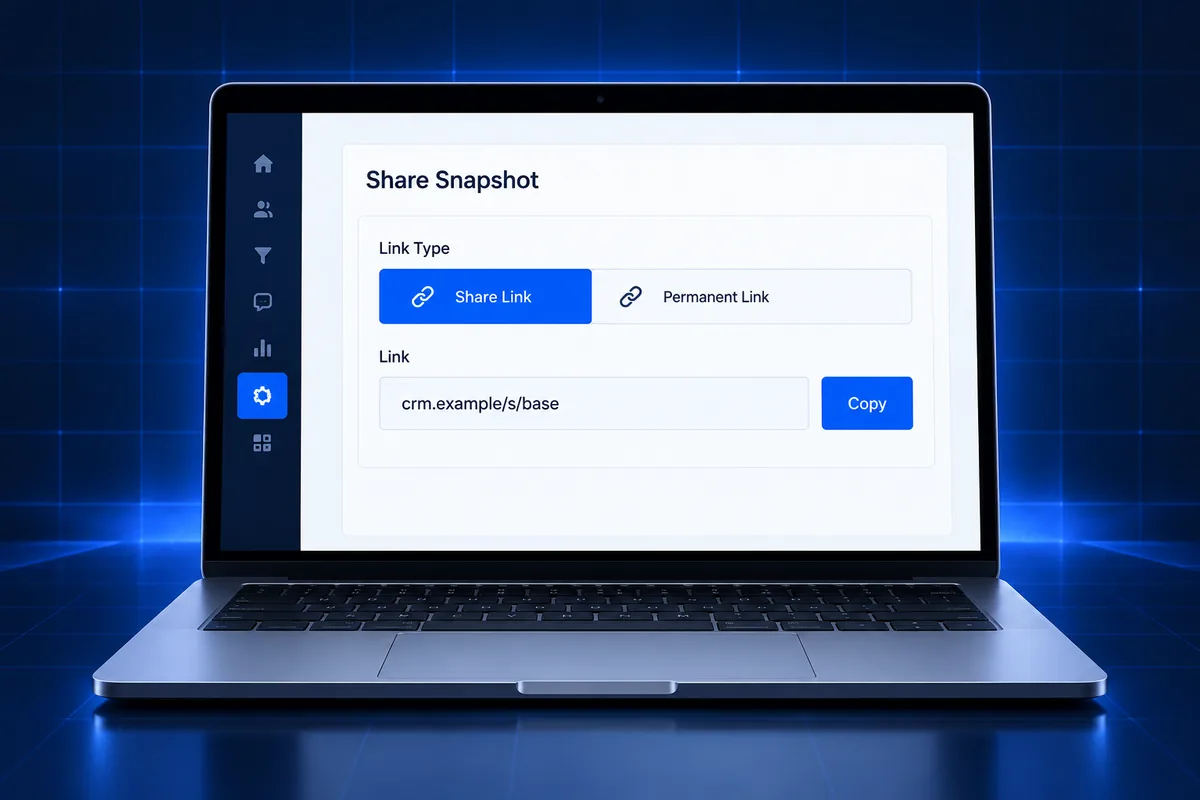
| Link type | How it works | Best for |
|---|---|---|
| Permanent Link | Reusable by anyone with the link | Free resources or internal reuse |
| One-Time Link | Stops working after one import | A single buyer or partner |
| Email Link | Single use, only for the named email recipient | Controlled delivery to one person |
| Agency-Restricted | Limited to the agency relationship numbers you enter | Partner agencies you know |
| Sub-Account Restricted | Limited to one sub-account | Installing into a specific client account |
| Marketplace Share Link | Protection applied automatically | Selling through the HighLevel App Marketplace |
- Refresh before you share: a share link carries the snapshot as it was last saved, so refresh it first or the recipient gets stale assets.
- Protect paid work: asset protection limits what the importing account can view or copy from your build.
- Permissions: the user sharing or importing needs the Share/Import Snapshots permission.
- Selling: Sell on Marketplace opens the developer portal, where you set agency or sub-account distribution and free, freemium or paid pricing. HighLevel reviews listings before they go live.
Agencies that import your snapshot through a share link do not receive your later updates automatically. To give them a new version, refresh the snapshot and share it again.
How do you push snapshot updates to accounts that already loaded it?
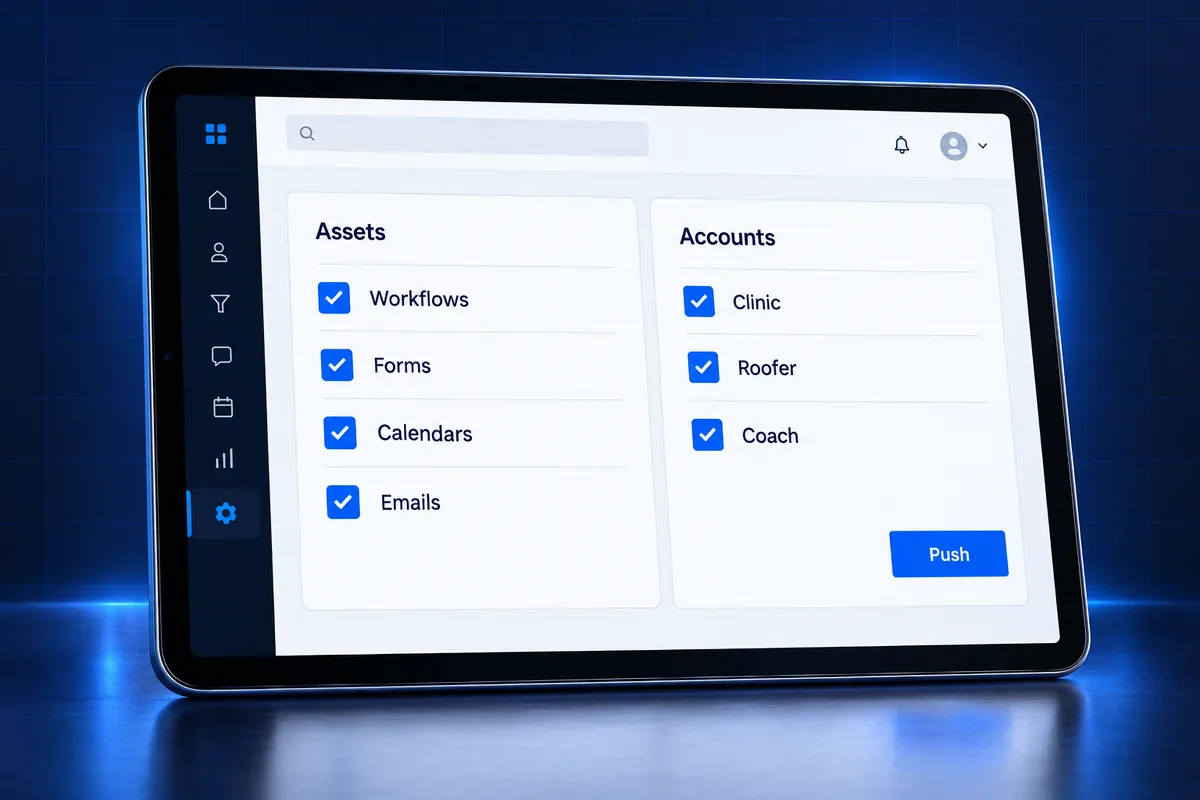
GoHighLevel snapshots do not update loaded accounts automatically. To push changes, edit the template account, click the Refresh icon on the snapshot in Account Snapshots, choose which assets to refresh, then use Push Update to select the sub-accounts and assets that should receive the new version. Pushes only reach your own agency’s sub-accounts.
- Linked assets get overwritten: a pushed workflow or campaign replaces the client account’s version, so any edits the client made to that linked asset are lost unless they duplicated it first.
- Custom values are safe: HighLevel does not edit or delete custom values during a push, so each client’s business details stay in place.
- Removed workflow steps matter: if a refresh deletes a step that contacts are waiting on, those contacts are removed from the workflow, and the execution log shows the snapshot refresh as the reason.
- Manage linked assets: under Edit Snapshot you can see which assets are linked and therefore pushed. Unlinking an asset does not change copies already deployed.
- Versions: each successful refresh creates a version you can compare with the previous one.
What happens when you load a snapshot into an existing account?
When a snapshot is loaded into a sub-account that already has assets, HighLevel shows each conflict and asks you to Override or Skip it, then to type a confirmation. An override cannot be undone, and a loaded snapshot cannot be unloaded, so review the conflict list carefully before you confirm.
What are the most common mistakes when creating a GoHighLevel snapshot?
The most common mistakes when creating a GoHighLevel snapshot are building it from a live client account, hard-coding client details instead of using custom values, leaving out assets a workflow depends on, sharing a stale version and pushing updates that wipe a client’s own edits. Each one shows up only after the snapshot is installed.
- Snapshotting a client account: real names, links and old messages travel into every new install.
- Hard-coded details: text typed into templates instead of custom values must be hunted down in each account.
- Missing dependencies: a workflow that references a calendar or form left out of the snapshot breaks on load.
- Forgetting drafts: funnels and websites from a snapshot arrive as drafts until a domain is connected and they are published.
- Expecting connections to copy: integrations must be reconnected, Voice AI agents need a phone number, and WhatsApp templates need Meta approval in the new account.
- Careless pushes: pushing linked assets over a client’s customized versions erases their changes.
- Skipping compliance setup: a snapshot full of SMS follow-ups is useless until the new sub-account has an approved A2P 10DLC campaign.
Our guide to GoHighLevel sub-account setup lists the account-level settings each new install still needs.
That last point catches many agencies. We handle A2P 10DLC registration for each new sub-account for a $50 flat service charge, so the texts in your snapshot can actually be delivered.
Should you build your own snapshot or use a ready-made one?
Building your own GoHighLevel snapshot makes sense when you serve one niche repeatedly and have time to test and maintain it. A ready-made snapshot makes sense when you need a working build quickly and would rather customize a tested base than start from an empty sub-account.
| Factor | Build your own | Ready-made snapshot |
|---|---|---|
| Time to first install | Longest: build, test and package first | Shortest: install and customize |
| Fit to your process | Exact | Close, then adjusted |
| Maintenance | You refresh and push updates | Depends on the seller |
| Risk | Untested logic until real leads arrive | Varies; free ones are often untested |
Our GoHighLevel snapshots by industry are built and installed for you, with custom values set for your business. If you are weighing free templates against a custom build, our comparison of custom vs free GoHighLevel snapshots explains the trade-offs, and our snapshot installation guide covers the import side.
Snapshot installed but nothing works?
If a snapshot loaded into your sub-account but workflows never fire, forms go nowhere or messages still show template placeholders, the build usually needs a structured review rather than another reload. Our GoHighLevel account audit and rebuild checks workflows, custom values, calendars, domains and A2P status, then gives you a fixed quote to fix what is broken.
Plans for ongoing help are on our services and pricing page.
Frequently Asked Questions
Can you create a snapshot in GoHighLevel from scratch?
No. A GoHighLevel snapshot is always created from an existing sub-account. You build and test the template in a sub-account first, then go to Account Snapshots, click Create New Snapshot, select that sub-account as the source and choose which assets to include. The snapshot screen itself has no builder.
Does a GoHighLevel snapshot include contacts?
No. A snapshot copies the build of a sub-account, not its data. Contacts, appointments, conversations, reputation data and contact associations stay in the source account. Payment connections such as Stripe and other integrations are also not copied, so they must be connected again in each account that loads the snapshot.
Do snapshot updates apply automatically to client accounts?
No. Snapshots do not update loaded accounts automatically. After changing the template account, you refresh the snapshot, then use Push Update to choose which sub-accounts and assets receive the new version. Pushes reach only your own agency’s sub-accounts; agencies that imported through a share link need a newly shared version.
What is the difference between a permanent and a one-time snapshot link?
A permanent snapshot link can be used to import the snapshot again and again by anyone who has it. A one-time link stops working after a single import. HighLevel also offers email links for one recipient and links restricted to a specific agency or sub-account, which give tighter control over who installs your build.
Will pushing a snapshot update overwrite a client’s changes?
It can. When you push linked assets such as workflows or campaigns, the client account’s version is replaced with the snapshot version, and any edits made to that asset are lost unless it was duplicated first. Custom values are not edited or deleted by a push, so each client’s business details stay intact.
Can you sell a GoHighLevel snapshot?
Yes. HighLevel lets you list a snapshot on its App Marketplace through Sell on Marketplace, which opens the developer portal. You choose agency or sub-account distribution and free, freemium or paid pricing, and HighLevel reviews the listing before it goes live. You can also share protected links directly with buyers.