
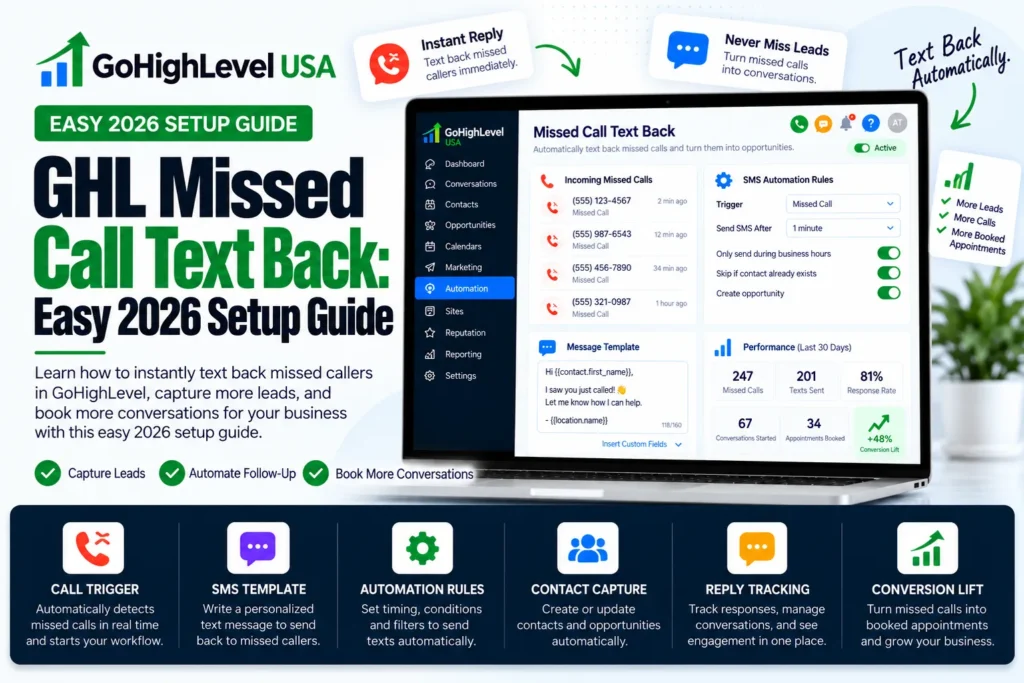
GHL missed call text back is a GoHighLevel feature that sends an automatic text to anyone whose call you do not answer. The caller gets a friendly message within seconds, so the lead stays with you.
In this guide you will learn how it works and two ways to set it up. You will also see why A2P registration matters and which message templates work best for US service businesses.
What Is GHL Missed Call Text Back?
When a call rings out with no answer, HighLevel spots it as a missed call. It then sends a text from the same business number the person just called. The text opens a chat, and replies land in your Conversations inbox.
Think of a plumber under a sink or a roofer on a ladder. They cannot pick up every call. With GHL missed call text back turned on, the caller still hears from the business right away. That fast first reply is the heart of speed-to-lead.
Here is what GHL missed call text back does for you:
- Sends a text when an incoming call is not answered.
- Uses your own business number, so the text looks familiar.
- Lets you add the contact name and other custom values.
- Saves the chat in the contact record for your team to see.
How Does GHL Missed Call Text Back Work?
GHL missed call text back sends your saved text to anyone whose call goes unanswered past the timeout you set. The caller replies, and the conversation appears in HighLevel Conversations for your team. The whole process takes only a few seconds. Here is the simple flow from ring to reply.
- A customer calls your HighLevel phone number.
- The call rings for the timeout you set, then counts as missed.
- HighLevel sends your saved text message to the caller.
- The caller replies, and the chat shows up in Conversations.
- Your team follows up by text or calls them back.
The official HighLevel help article makes one rule clear. Answered calls never trigger a text back. Only calls that go unanswered past your timeout will send the message.
New to GoHighLevel? Try it free for 30 days
HighLevel's standard free trial is 14 days. Through our partner link you get 30 days plus HighLevel's free onboarding bootcamp. Rather have it built for you? Our US team sets up GoHighLevel accounts, websites, funnels and automations.
Partner link: we may earn a commission at no extra cost to you. Disclosure
What Do You Need Before You Start?
Before you start, you need a HighLevel sub account, a phone number inside HighLevel and approved A2P 10DLC registration for US texting. Calls must also reach that number. Check these items first. Missing any one of them is the most common reason a text never goes out.
- A HighLevel sub account for the business, not just the agency view.
- A phone number bought inside HighLevel or connected through your phone system.
- Approved A2P 10DLC registration if you text people in the United States.
- Calls going to that number, either directly or through call forwarding.
HighLevel has also added smarter sending number selection: if the number a person called can’t send SMS, HighLevel picks an eligible sending number instead of letting the text fail. For WhatsApp-first businesses, a separate Missed Call WhatsApp Back option sends the follow-up on WhatsApp instead of SMS.
How to Turn On GHL Missed Call Text Back in Phone Settings
You turn on GHL missed call text back in the sub account’s phone settings, under Settings, Phone System and the Voice tab. This is the fastest way to start. It needs no workflow and works in about five minutes. The steps below follow the current HighLevel help docs.
Step 1: Open the Phone System
Click Settings in the bottom left corner. Choose Phone System from the left menu, then open the Voice tab at the top.
Step 2: Find the Text Back Panel
Select Voicemail and Missed Call Text Back. A side panel opens. Click the Missed Call Text Back section.
Step 3: Enable and Write Your Message
Check the box to enable the feature. Click Customize and type your text. Use the tag icon to add custom values like the contact first name or a booking link. HighLevel notes that contact values only fill in when the system already recognizes the caller from an earlier interaction.
Step 4: Send a Test
Pick a number from the dropdown and send a test message. Read it on your phone the way a customer would see it.
Step 5: Set the Call Timeout and Save
In voicemail settings, move the incoming call timeout slider. HighLevel says 10 to 20 seconds is usually a good choice. Click Save and GHL missed call text back goes live.
Tip: older guides tell you to look under Business Profile. HighLevel has moved menus over time, so trust the Phone System path above.
Should you build GHL missed call text back with a workflow?
Build GHL missed call text back with a workflow when one automatic text isn’t enough. A workflow-based version can tag the lead, alert your team, create a callback task, wait before texting and handle repeat callers. The phone settings toggle can’t do those things, but it is faster to switch on.
HighLevel itself points to a workflow for one common problem. Its help center says the built-in feature sends a text for every missed call, even when the same person calls several times in a short window, and recommends a workflow when you want to avoid repeat texts.
- Choose the toggle if you want one friendly reply to every missed caller today.
- Choose a workflow if you need after-hours messages, team alerts, callback tasks, reporting tags or protection against duplicate texts.
- Never run both: if a workflow handles missed calls, turn the phone settings toggle off, or callers can get two texts for one call.
A workflow build also has more ways to fail: wrong call statuses, missing filters, a draft that was never published. If yours misfires, our guide to fixing a GoHighLevel workflow that’s not working covers the usual causes.
Phone Settings Toggle vs Workflow: Which Should You Use?
Use the phone settings toggle for a quick single text, and use a workflow when you need delays, tags, team alerts or business hours logic. Both methods work well. The toggle takes about five minutes, while a workflow takes longer to build. This table helps you pick the right one for your business.
| Feature | Phone Settings Toggle | Workflow Trigger |
|---|---|---|
| Setup time | About 5 minutes | About 15 to 30 minutes |
| Texts sent | One message | One or many messages |
| Delay before text | Sends right away | Custom wait time |
| Tags and tasks | No | Yes |
| Team alerts | No | Yes |
| Business hours logic | No | Yes, with If/Else branches |
| Best for | Solo owners who want speed | Teams that want full follow up |
Why Does GHL Missed Call Text Back Need A2P Registration?
In the United States, business texts sent from normal 10 digit local numbers fall under a carrier system called A2P 10DLC. A2P means application to person, which is exactly what an automatic text is. According to Twilio’s A2P 10DLC guide, anyone sending app based texts over a 10DLC number to US phones must register.
You register a Brand, which is your business, and a Campaign, which explains why you text people.
If you skip it, your GHL missed call text back messages can be filtered or blocked with extra carrier fees. Many owners think GHL missed call text back is broken when the real problem is a missing or rejected registration.
A few tips help your campaign get approved:
- Use your exact legal business name and EIN.
- Make sure your website has a privacy policy and SMS terms.
- Add sample messages that match what you send.
- Include opt out words like “Reply STOP to opt out.”.
A2P forms can be tricky. We handle GoHighLevel A2P 10DLC registration for a $50 flat service charge and review your website and opt-in before you submit. For consent and opt-out basics, read our guide to TCPA texting rules.
GHL Missed Call Text Back Templates for US Service Businesses
Keep your text short, friendly and clear. Say who you are, say sorry for missing the call and give one easy next step. Always include an opt-out line such as “Reply STOP to opt out”. Here are templates you can copy for common US service businesses.
HVAC and Plumbing
“Hi {{contact.first_name}}, this is Cool Air HVAC. Sorry we missed your call! Is this an emergency or a regular service visit? Reply here and we will help fast. Reply STOP to opt out.”
Roofing and Home Repair
“Hi, thanks for calling Summit Roofing. We are on a job right now. What can we help with? Text us your address and a photo of the problem. Reply STOP to opt out.”
Dental and Med Spa
“Hi {{contact.first_name}}, sorry we missed you at Bright Smile Dental. Want to book a visit? Reply with a good day and time, or use our booking link. Reply STOP to opt out.”
Law Firm
“Hello, this is Carter Law. We missed your call. Please reply with your name and a short note about your case, and we will call you back today. Reply STOP to opt out.”
Cleaning and Lawn Care
“Hi there! Thanks for calling Fresh Home Cleaning. Want a free quote? Reply with your zip code and home size. Reply STOP to opt out.”
Swap in your own business name. Each template asks a question, because questions get more replies than plain notices.
Best Practices for GHL Missed Call Text Back
A good GHL missed call text back setup is more than one text. Reply fast, ask one easy question, add a booking link and send a separate after hours version. Follow these habits to turn missed calls into booked jobs instead of lost leads.
- Reply fast: answer the text within a few minutes when you can.
- Ask one question: it is easier to answer than an open message.
- Add a booking link: let people schedule without a call.
- Use business hours: send an after hours version at night.
- Stop duplicates: turn off re entry or the extra method.
- Test monthly: call your own number from another phone.
- Track results: tag missed calls and check how many book.
Pair this with a pipeline so every missed call becomes a lead card. Our missed call text back service team can connect your text back to booking pages.
Why Is My GHL Missed Call Text Back Not Working?
If GHL missed call text back sends no text, the cause is usually A2P status, an unsaved setting, calls answered elsewhere or a timeout that is too long. Check these common problems one by one. Fix one at a time and test with a real call after each change.
- A2P not approved: check your Trust Center status in HighLevel.
- Feature not saved: open phone settings and confirm the box is checked.
- Calls answered elsewhere: a forwarded cell or voicemail may pick up first.
- Timeout too long: lower the slider so HighLevel marks the call as missed.
- Workflow in draft: make sure you clicked Publish.
- Testing from your own number: use a phone that is not a team member line.
Budgeting for it? See what missed call text back costs, software vs done-for-you.
Want missed calls handled for you?
If missed calls are costing you jobs, the fix is a complete response system, not a single text. Our missed-call text-back and speed-to-lead system sets up the text back, after-hours handling, team alerts and A2P registration inside your GoHighLevel account, so every missed caller gets a reply.
Prefer an AI voice to answer instead of a text? See the GoHighLevel AI receptionist. Want the whole account built? Our done for you GoHighLevel setup covers the phone system too.
Frequently Asked Questions
Where is missed call text back in GoHighLevel?
In the sub-account, go to Settings, then Phone System, then the Voice tab, and open Voicemail and Missed Call Text Back. In the side panel, click Missed Call Text Back, check the enable box, customize the message, send a test and save. Older guides point to Business Profile, but HighLevel has since moved the setting.
What call timeout should I use for missed call text back?
HighLevel’s help center says 10 to 20 seconds is typically recommended. The timeout decides when a call counts as missed. A very long timeout delays the text back, and a very short one can cut off callers your team would have answered. Test with a real call from a phone that isn’t on your team.
Why did a caller get several missed call texts?
The built-in feature sends a text for every missed call, even when the same person calls several times in a short period. HighLevel recommends using a workflow if you want to avoid repeat texts. Also check that the toggle and a missed-call workflow aren’t both switched on, which sends two texts for one call.
Do I need A2P 10DLC for missed call text back?
Yes, if you text US contacts from a local 10-digit number. A missed call text is application-to-person traffic, so your brand and campaign must be registered through The Campaign Registry. Without approval, carriers can filter or block the message, which is the most common reason the feature seems broken.
Why doesn’t my message show the caller’s first name?
Custom values such as the first name only fill in when HighLevel already recognizes the caller from an earlier interaction. A brand-new caller has no name in the CRM yet. Write the message so it still reads naturally without the name, for example “Hi there, sorry we missed your call.”
Can GoHighLevel send a missed call message on WhatsApp?
Yes. HighLevel has a Missed Call WhatsApp Back option in the phone system that messages callers on WhatsApp after a missed call, without building a workflow. It needs a connected WhatsApp setup in the sub-account. Use it when your customers prefer WhatsApp to SMS.