
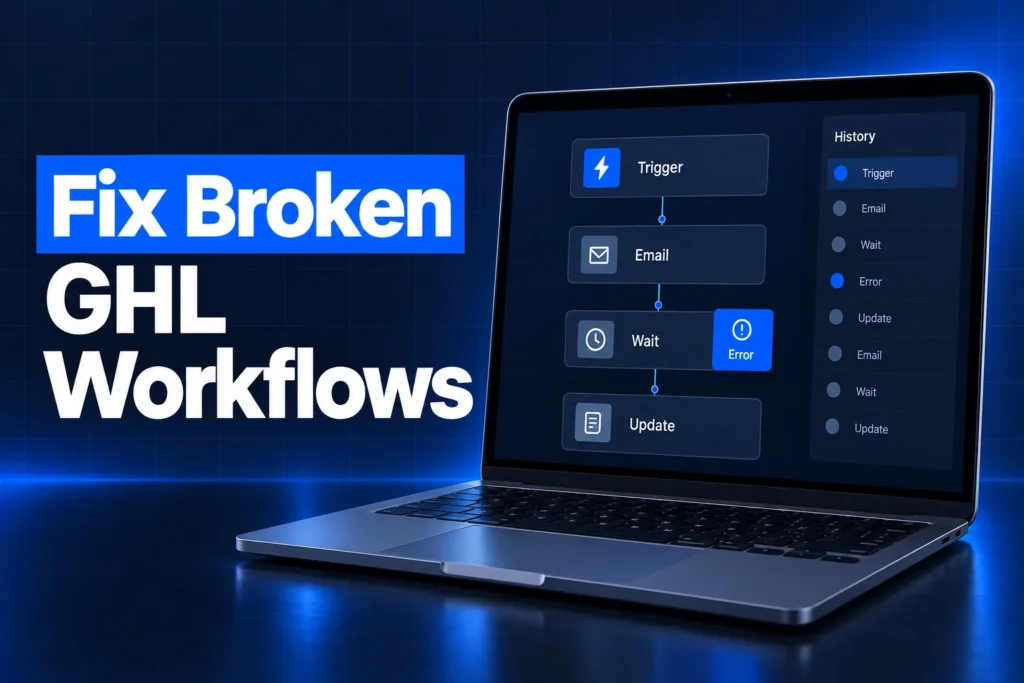
If your GoHighLevel workflow is not working, the cause is usually one of nine things: the workflow isn’t published, a trigger filter doesn’t match, the contact already went through it, a wait or time window is holding it, DND or a failed send blocked a message, two workflows compete, a snapshot import broke a reference, or the phone or email channel isn’t connected.
This guide shows how to tell a trigger problem from an action problem using the workflow’s own history and logs, then walks through each cause, what it looks like and what to check. It is written for business owners and agencies who need their follow-up to run without guessing.
GoHighLevel workflow not working? How to find the cause
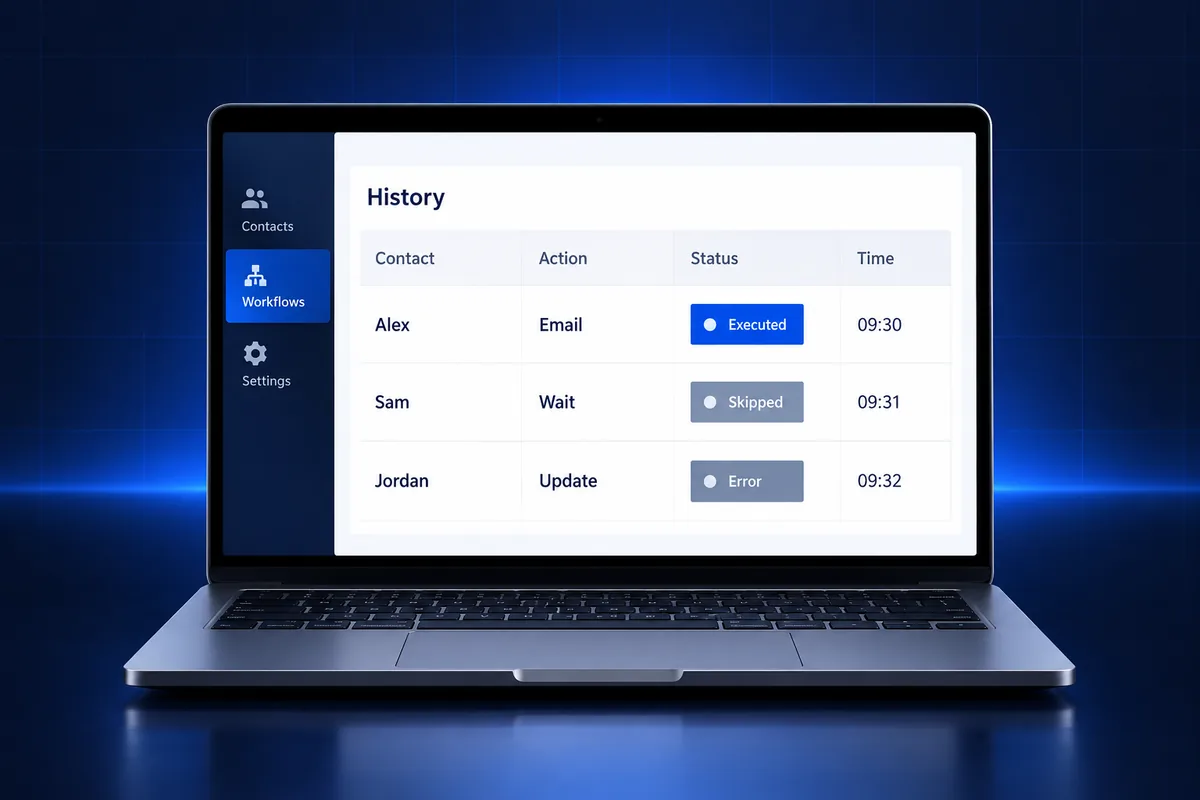
Start with the contact, not the workflow. Open the workflow’s enrollment history to see whether the contact entered it at all, then open the execution logs to see each step that ran, waited, was skipped or failed. Those two views split almost every problem into a trigger issue or an action issue.
- Contact never entered: the trigger didn’t fire or a trigger filter rejected the event. Look at the trigger, its filters, the publish status and re-entry.
- Contact entered but stalled: a wait step, a time window or an If/Else branch is holding them. Check the step where they stopped.
- Step shows as skipped: the action had no valid target, was disabled, or a condition sent the contact down another branch.
- Step shows as failed: the action ran and the provider rejected it. SMS and email failures carry an error code in the log.
HighLevel’s own troubleshooting advice is the same: test with a fresh contact that has never been in the workflow, review the trigger filters, check the re-entry setting and read the execution and error logs before changing anything.
The builder also flags many configuration errors on the canvas before you publish, such as a missing calendar on an appointment trigger, an empty SMS body or a disconnected integration. HighLevel notes that this check does not catch every possible problem, so a clean canvas is not proof that the workflow works.
1. Is the workflow published?
A GoHighLevel workflow only runs on live events after it is published. A workflow saved as a draft keeps every trigger and action you built, but no new contact enters it, which makes drafts the simplest cause of a “workflow not triggering” complaint.
- Check the publish toggle at the top of the builder after every edit.
- Saving with errors is allowed; publishing is blocked when an error is marked as publish-blocking.
- A paused action inside a published workflow shows as skipped in the logs, which can look like a failure.
New to GoHighLevel? Try it free for 30 days
HighLevel's standard free trial is 14 days. Through our partner link you get 30 days plus HighLevel's free onboarding bootcamp. Rather have it built for you? Our US team sets up GoHighLevel accounts, websites, funnels and automations.
Partner link: we may earn a commission at no extra cost to you. Disclosure
2. Why is my GoHighLevel workflow not triggering?
A GoHighLevel workflow not triggering usually means the event happened but a trigger filter rejected it. Filters are optional, but every filter you add must match the event exactly, such as the right form, pipeline, stage, tag, calendar or phone number. One wrong filter blocks every contact silently.
- Wrong trigger type: “Opportunity Created” won’t fire when an existing deal changes stage; that is a different opportunity trigger.
- Wrong pipeline or stage: the deal sits in a pipeline the filter doesn’t name.
- Wrong form or survey: a new version of a form was published and the filter still points at the old one.
- Tag spelling: “New Lead” and “new-lead” are different tags.
- Stacked filters: multiple filters on one trigger must all match, which narrows it further than most people expect.
When the trigger itself is the suspect, repeat the event with a brand-new test contact and watch whether it appears in the enrollment history. If it does, the trigger works and the problem is further down.
3. Did the contact already go through the workflow?
GoHighLevel blocks a second pass when Allow Re-entry is off: a contact who has entered the workflow once won’t enter it again. Even with re-entry on, a contact who is still active in the workflow can’t enter again until they finish or are removed, so repeat tests on the same contact often fail.
- Appointment and invoice triggers are the exception; they allow a new entry for each new appointment or invoice whatever the setting says.
- With several opportunities per contact, the “Allow multiple opportunities” setting decides whether each deal gets its own run.
- When you test, use a contact that has never been in the workflow. It removes past enrollment as a variable.
4. Is a wait step or time window holding the contact?
Wait steps and time windows are the most common reason a GoHighLevel workflow looks stuck. A wait holds the contact until a time, event or condition is met, and a time window pauses SMS, email and call actions outside the hours you set, resuming them at the next allowed slot.
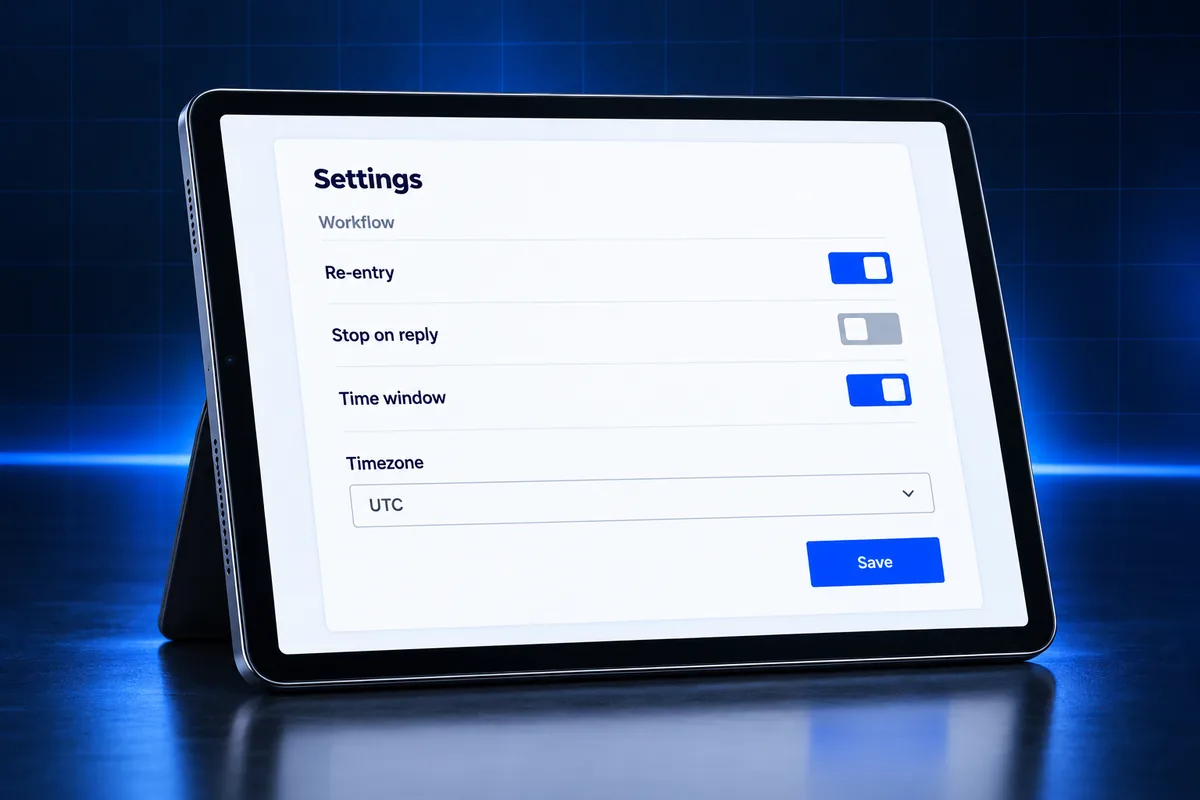
- Time zone choice: workflow settings use either the account time zone or each contact’s time zone. Contacts with no time zone fall back to the account setting.
- Wrong account time zone: a sub-account set to another region sends at the wrong local hour.
- Waits on events: a wait for a reply or an appointment status can hold a contact for a long time if that event never happens, so check its timeout.
- Stop on response: when enabled, a contact who replies to a message from that workflow leaves it. That’s often the intended behavior, but it can look like the workflow “stopped working”.
One edge case: on call actions, a voicemail greeting can count as a response when voicemail detection is disabled, which ends the workflow early. HighLevel’s guidance is to keep the call timeout short so the call ends before most carriers forward it to voicemail.
5. Did DND, consent or a failed send block the message?
A workflow can run perfectly and the message still never arrives. If the contact has Do Not Disturb on for that channel, replied STOP, has an invalid or landline number, or your number isn’t registered for A2P 10DLC, the send fails or is blocked, and the execution log shows it.
- DND: it can be set per channel or for all channels; a workflow action can also switch it on.
- Opt-outs: contacts who texted STOP stay blocked until they opt back in with a supported keyword.
- A2P 10DLC and toll-free: US local and toll-free numbers need registration or verification. Error codes such as 30034 point to a number not fully linked to an approved campaign.
- Carrier filtering: spam-like content can be blocked; error 30007 is a common sign.
- Email: a sending domain without SPF, DKIM and DMARC, or a From field holding a name instead of an address, can stop delivery.
Look for a red status on the message in Conversations, then match the error code. Fixing the workflow won’t help when the real problem is A2P 10DLC registration or email authentication.
6. Are two workflows competing for the same contact?
Duplicate or overlapping workflows cause the “two messages or none” problem. When two workflows share a trigger, one may send a message and the other may remove the contact, change a tag or move a deal, so the result looks random from the outside.
- Search the workflow list for every workflow using the same form, tag or pipeline stage.
- Watch for actions like “Remove from workflow”, “Remove tag” or DND changes in another workflow.
- Check for loops, where one workflow adds a tag that triggers another that triggers the first again.
- Old campaigns or workflows from an earlier build may still be published.
This is the most common pattern we see in accounts that several people have edited over time. Our guide to GoHighLevel CRM optimization covers how to consolidate them.
7. Did a snapshot import break the workflow?
A snapshot copies workflows into a sub-account, but some references don’t carry over cleanly. Calendars, custom fields, custom values, pipelines, forms, phone numbers and integrations may point at items that don’t exist in the new account or still need connecting, so the imported workflow fails on the first run.
- HighLevel’s error highlighting flags missing fields from snapshot imports, such as appointment and custom fields; open each flagged step.
- Custom values like a company name or booking link often hold the original account’s data.
- Third-party connections (Facebook, Google, Stripe) need re-authorizing in the new sub-account.
- Sender details, the From number and the From email must belong to the new account.
Snapshot quality matters as much as setup. Our guide on how to create a snapshot in GoHighLevel explains what to clean up before sharing one.
8. Is the phone number, email or integration connected?
Workflows depend on the sub-account’s channels. If no SMS-capable number is assigned, no sending domain is set up, or an integration lost its authorization, actions that rely on them fail or are skipped even though the workflow logic is correct.
- Check that a number is assigned in LC-Phone (or your Twilio connection) and set as the workflow’s From number.
- Confirm the LC-Email or dedicated sending domain is verified.
- Reconnect integrations that show an authentication error on the canvas.
- Webhooks and API steps fail when the receiving endpoint changes; our GoHighLevel webhooks guide covers inbound and outbound setups.
New sub-accounts often miss one of these on day one. The GoHighLevel sub-account setup guide lists everything a working account needs.
9. Is an If/Else branch sending contacts the wrong way?
If/Else conditions decide which path each contact takes. When a condition checks an empty custom field, a tag that is added a moment later, or a value with different capitalization, contacts quietly flow down the “none” branch and never reach the actions you expected.
- Check the order of events: a tag added by the same trigger may not exist yet when the condition runs.
- Give every branch a fallback so a contact never ends up on an empty path.
- Test with contacts that match each branch, not just the happy path.
Quick checklist: GoHighLevel workflow errors at a glance
Most GoHighLevel workflow errors can be traced in a few minutes with this table. Match the symptom to the likely cause and the place to check, then fix one thing at a time and retest with a fresh contact so you know which change solved it.
| Symptom | Likely cause | Where to check |
|---|---|---|
| Nobody enters the workflow | Draft status or a filter mismatch | Publish toggle, trigger filters |
| Works once, not again | Re-entry off or contact still active | Workflow settings, enrollment history |
| Contacts stuck mid-way | Wait step, time window, time zone | Execution logs, settings |
| Step shows skipped | Paused node, no target or branch condition | Execution logs, If/Else |
| SMS or email failed | DND, opt-out, A2P or domain issue | Conversations, error code |
| Double or missing messages | Competing workflows or loops | Workflow list, shared triggers |
| Broke after snapshot import | Missing fields, values or integrations | Canvas error panel |
When should you order a full account audit?
Order a full account audit when fixes keep breaking something else, when nobody knows which workflow does what, or when leads get two messages or none on a regular basis. Those signs point to overlapping automation across the whole sub-account, not one bad step, and patching single workflows rarely fixes that.
Our GoHighLevel sub-account audit and rebuild reviews every workflow, trigger, pipeline, tag, custom field, calendar and integration, then gives you a written list of issues ranked by impact. With the rebuild option we fix broken triggers and workflows, test them and walk you through the result. If you want a lighter first look, our GoHighLevel tech audit guide explains what a review covers. You can compare packages on our pricing page.
Frequently Asked Questions
Why is my GoHighLevel workflow not triggering?
The most common reasons are that the workflow is still a draft, a trigger filter doesn’t match the event, or the contact already went through it with re-entry turned off. Test with a brand-new contact, compare the event with every filter on the trigger, and check the enrollment history to see whether the contact entered at all.
Where can I see GoHighLevel workflow history?
Each workflow has an enrollment history that shows which contacts entered and when, and execution logs that show every step a contact went through with its status, such as executed, waiting, skipped or failed. Message failures include the error code. Start there before editing the workflow, so you fix the real cause.
Why does a workflow step show as skipped?
A step is skipped when it was paused in the builder, when it had no valid target, or when an If/Else condition sent the contact down another branch. Scheduler-based workflows also skip contact-only actions when no contact is present. The execution log usually gives the reason next to the skipped step.
Why is a contact not receiving SMS from a workflow?
The contact may have DND on for SMS, may have replied STOP, or may have an invalid or landline number. Your sending number may also lack an approved A2P 10DLC campaign or toll-free verification. Check the message status in Conversations, then look up the error code in the execution log.
Can a contact go through the same workflow twice?
Only if Allow Re-entry is turned on in the workflow settings, and only after the contact has finished the workflow or been removed. A contact still active in the workflow can’t enter again. Appointment and invoice triggers are the exception and allow a new entry for each new appointment or invoice.
Why did my workflows stop working after a snapshot import?
Imported workflows can point at calendars, custom fields, custom values, phone numbers or integrations that don’t exist or aren’t connected in the new sub-account. Open the workflow’s error panel, fix each flagged step, update custom values, reconnect integrations and set the sender details before publishing.