
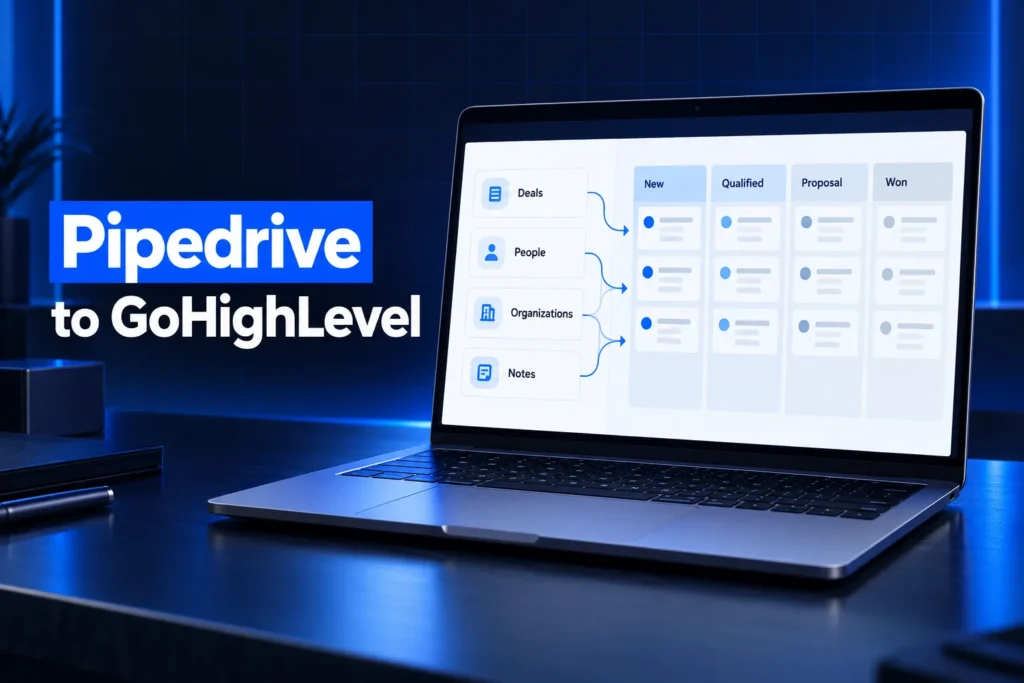
A Pipedrive to GoHighLevel migration moves your people, organizations, deals and notes out of Pipedrive as CSV files and into GoHighLevel contacts and opportunities. The data import is the easy part. The real work is rebuilding pipelines, custom fields, automations and texting compliance so the new account actually sells.
This guide covers what Pipedrive lets you export, how each record type maps into GoHighLevel, the import rules that trip people up, what has to be rebuilt by hand, and a realistic way to judge timeline and cost before you switch.
Why do teams move from Pipedrive to GoHighLevel?
Teams move from Pipedrive to GoHighLevel when they want the CRM, two-way texting, calendars, forms, funnels, email marketing and reviews in one account instead of paying for a pipeline tool plus several add-ons and connectors that each need their own login and billing.
- One inbox. GoHighLevel puts SMS, email, calls, Facebook and Instagram messages and web chat in one conversation view per contact.
- Built-in marketing. Forms, surveys, landing pages, email campaigns and booking calendars live in the same account as the pipeline.
- Agency model. Agencies can run many clients as separate sub-accounts and deploy the same build to each one with snapshots.
- Automation reach. GoHighLevel workflows can act on texts, calls, appointments and opportunity stages together, not only on deal fields.
Pipedrive is still a clean, focused sales pipeline. If your team only needs deal tracking and email sync, a move may add more surface area than you need. The switch pays off when follow-up across channels is where deals are being lost.
What can you export from Pipedrive?
Pipedrive’s Export data tab lets a global admin download leads, deals, organizations, people, products, activities, projects, notes and files as CSV or Excel files. Regular users can export only what their permission set and visibility group allow, so run the export from an admin login.
| Pipedrive item | Export format | What to watch |
|---|---|---|
| People and organizations | CSV or XLSX | Keep the Pipedrive IDs; you need them to join deals and notes later. |
| Deals | CSV or XLSX | Export the deal file and the people file separately, then join them on the person ID. |
| Activities | CSV or XLSX | Exported on their own, not inside the deal file. |
| Notes | HTML or plain text | Plain text imports more cleanly into a single notes field. |
| Files | File records | Files stored in Google Drive are not included in a global export. |
Pipedrive keeps exported files available for 28 days, so download them right away and store a dated copy. Synced email conversations are not part of the Export data list, so plan to keep that history in your mailbox rather than in the new CRM.
New to GoHighLevel? Try it free for 30 days
HighLevel's standard free trial is 14 days. Through our partner link you get 30 days plus HighLevel's free onboarding bootcamp. Rather have it built for you? Our US team sets up GoHighLevel accounts, websites, funnels and automations.
Partner link: we may earn a commission at no extra cost to you. Disclosure
How does Pipedrive data map to GoHighLevel?
Pipedrive people become GoHighLevel contacts, deals become opportunities inside a pipeline, and Pipedrive stages become pipeline stages. Organizations, products, lost reasons and labels need a decision first, because GoHighLevel stores them differently and a wrong choice is painful to undo after import.
| Pipedrive | GoHighLevel | Notes |
|---|---|---|
| Person | Contact | Each contact needs a name, email or phone. |
| Organization | Company record or a contact custom field | Choose one approach and keep it for every sub-account. |
| Deal | Opportunity | Linked to a contact by Contact ID. |
| Pipeline and stages | Pipeline and stages | Must exist in GoHighLevel before the opportunity import. |
| Deal status (open, won, lost) | Status (Open, Won, Lost, Abandoned) | Map lost reasons to an opportunity custom field. |
| Labels | Tags | Clean up duplicates before import. |
| Custom fields | Contact or opportunity custom fields | Create them first, with matching field types. |
| Products on deals | Opportunity value plus a field, or custom objects | Only rebuild product lines if reporting needs them. |
Leads Inbox items vs deals
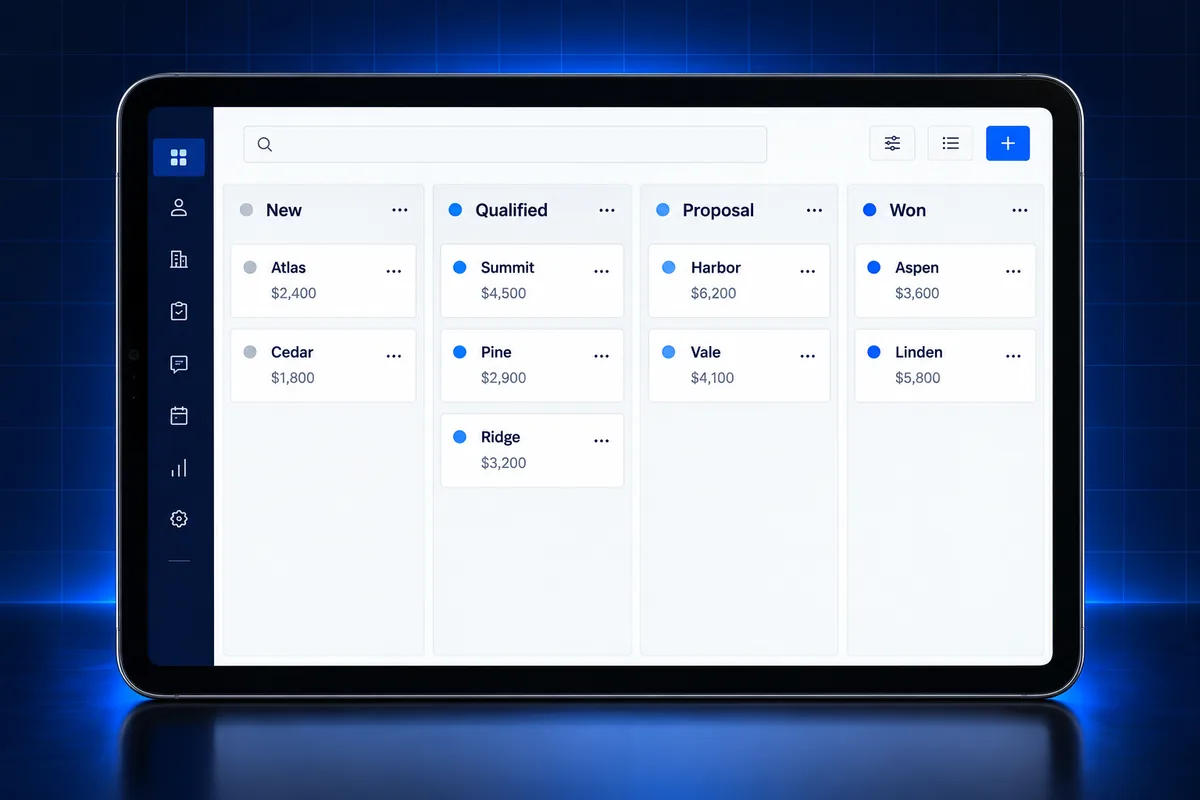
Pipedrive keeps unqualified leads in a separate Leads Inbox. In GoHighLevel the usual approach is a first pipeline stage such as “New lead”, so leads and deals live in one board. Decide this before import so the stage exists.
How should you prepare the CSV files?
Prepare Pipedrive exports for GoHighLevel by saving each file as a UTF-8 CSV with one sheet, a clear header row, dates in YYYY-MM-DD format, and phone numbers stripped of letters and symbols. Clean duplicates in the spreadsheet, because GoHighLevel imports cannot be rolled back with one click.
- Format: CSV only. HighLevel rejects Excel and Google Sheets files, and each file must be under 30 MB.
- Headers: at least one header must match a GoHighLevel field, and the first row cannot be blank.
- Identity: every contact row needs a name, email or phone number.
- Phones: use one consistent format with country code so contacts can be texted from LC-Phone numbers.
- Owners: map Pipedrive deal owners to GoHighLevel users who already exist in the sub-account.
- Test file: import a small sample first and check the records before running the full file.
How do you import contacts and opportunities into GoHighLevel?
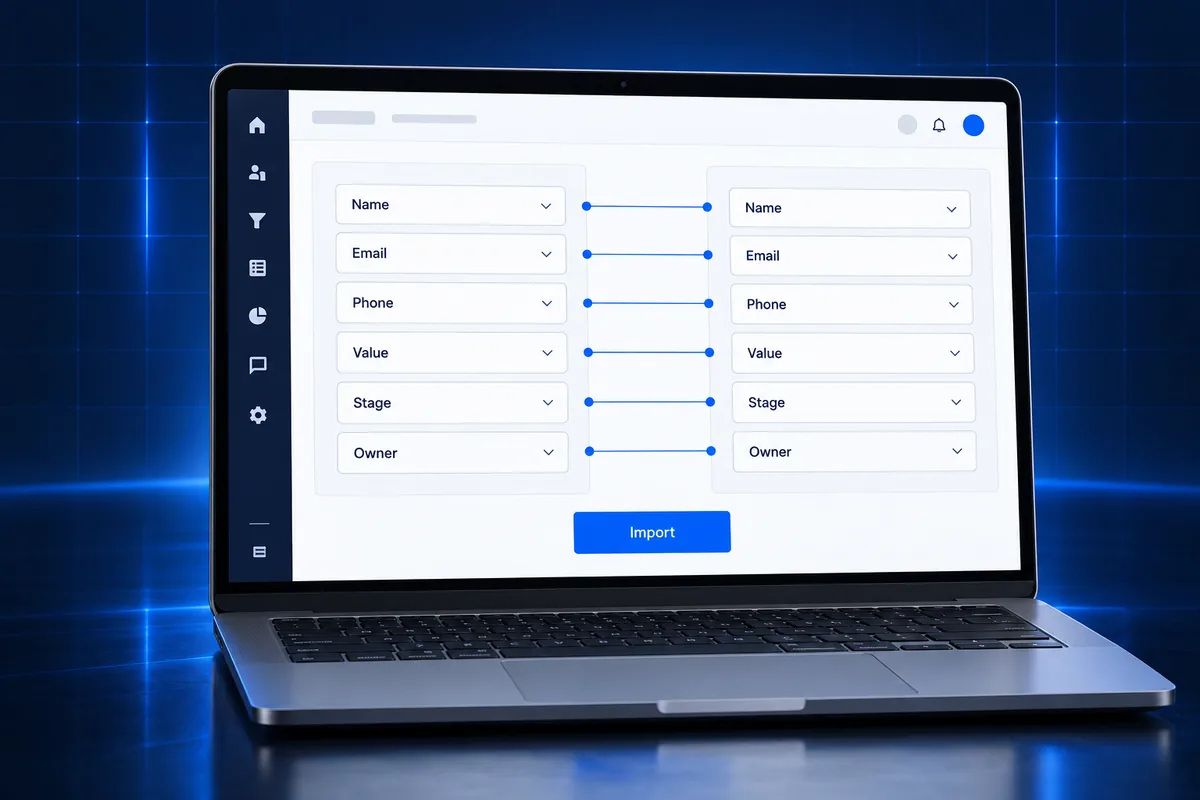
Import Pipedrive people into GoHighLevel as contacts first, then import deals as opportunities that reference each contact’s GoHighLevel Contact ID, or use the combined Contacts plus Opportunities import. Pipelines, stages and opportunity custom fields must already exist, because the importer will not create them.
- Create the pipelines, stages, tags and custom fields in the target sub-account.
- Import people as contacts and tag them with the source, for example “pipedrive-import”.
- Export the new contacts so you have each GoHighLevel Contact ID next to the old Pipedrive person ID.
- Import deals as opportunities with Contact ID, Opportunity Name and Pipeline as required columns, plus stage, value and status.
- Review failed rows in the import stats, fix only those rows, and re-import them.
When you update records later, keep “Don’t update Empty Values” switched on so blank cells do not wipe data you already imported. An update without the right Opportunity ID creates a new opportunity instead of changing the old one.
Notes and activity history
Pipedrive notes and activities do not have a matching one-click import into GoHighLevel opportunities. Common choices are a “Pipedrive history” field on the contact, an attached archive file, or a script through the GoHighLevel API that writes notes to each contact. Pick the option that matches how often your team really reads old notes.
What has to be rebuilt by hand after a Pipedrive migration?
A Pipedrive to GoHighLevel migration moves records, not behavior. Automations, web forms, scheduler links, email templates, reports, user permissions and integrations must be rebuilt in GoHighLevel, and this rebuild is usually where most of the project time goes.
- Automations: Pipedrive automations become GoHighLevel workflows. Document what each one achieves first, then rebuild the outcome rather than copying it step by step.
- Forms and booking: web forms and scheduler links become GoHighLevel forms and calendars, with new embed codes on your website.
- Email: sending from GoHighLevel needs a dedicated sending domain on LC-Email with DKIM, SPF and DMARC records in place.
- Integrations: anything wired to Pipedrive through Zapier, Make or webhooks must be pointed at GoHighLevel instead.
- Reporting: rebuild dashboards around opportunity stages and statuses, not old Pipedrive report names.
If several clients or locations need the same rebuilt setup, build it once and save it as one of your GoHighLevel snapshots so every sub-account starts from the same pipelines and fields.
Do you need A2P 10DLC registration after moving to GoHighLevel?
Yes. If you plan to text US contacts from GoHighLevel local numbers, the sub-account needs an approved A2P 10DLC brand and campaign through The Campaign Registry. Imported contacts also keep their consent status only if you carry opt-out and do-not-contact data across.
- Import opt-outs and unsubscribes as DND or a tag before any campaign runs, so nobody who opted out in Pipedrive gets texted.
- Match the legal business name to the EIN record before you submit A2P, since a mismatch is a common rejection reason.
- Do not blast an old imported list on day one. Warm up sending and message only people with a clear opt-in.
We handle A2P 10DLC registration for GoHighLevel as a flat $50 service charge, with carrier fees passed through.
How long does a Pipedrive to GoHighLevel migration take and what does it cost?
A Pipedrive to GoHighLevel migration’s timeline and cost depend on record volume, the number of pipelines and custom fields, how many automations must be rebuilt, and whether notes and integrations move through the API. A small single-pipeline account is far quicker than a multi-team setup with custom reporting.
| Factor | Lighter project | Heavier project |
|---|---|---|
| Pipelines | One sales pipeline | Several teams or locations |
| Custom fields | A few standard fields | Many fields, dropdowns and products |
| History | Contacts and open deals only | Notes, activities and closed deals |
| Automations | Basic follow-up | Multi-step sequences and routing |
| Integrations | None or native | Webhooks, custom code or API sync |
Platform fees are separate from build fees. You can compare our setup and monthly tiers on the GoHighLevel service pricing section, and the GoHighLevel migration FAQs answer common questions about downtime and data.
What are the most common Pipedrive migration mistakes?
The most common Pipedrive migration mistakes are importing deals before pipelines and fields exist, losing the link between deals and people, overwriting good data with blank cells, and texting imported contacts before A2P approval or before opt-outs are carried across.
- No ID map. Without a sheet that pairs Pipedrive person IDs with GoHighLevel Contact IDs, deals cannot be joined to the right contacts.
- Field type mismatch. A Pipedrive dropdown imported into a text field breaks filters and smart lists.
- Running both CRMs too long. Set a cutover date and freeze Pipedrive edits so records do not split.
- Skipping a test import. A sample file catches mapping errors before thousands of rows go in.
The same planning rules apply to other platforms. Our Salesforce to GoHighLevel migration guide covers the larger-CRM version of this process.
Moving off Pipedrive with integrations attached?
Pipedrive migrations that involve webhooks, Zapier zaps, custom code or API sync are where DIY projects usually stall. A planned integration rebuild keeps leads flowing during cutover instead of silently dropping between two systems.
Our GoHighLevel API and webhook integration service maps your data, reconnects your tools and moves notes through the API where the importer cannot. If the account was already set up badly before the move, start with a GoHighLevel sub-account audit and rebuild so you migrate into a clean structure.
Frequently Asked Questions
Can I import Pipedrive deals directly into GoHighLevel?
Yes, as opportunities through a CSV import. Each row needs a GoHighLevel Contact ID, an opportunity name and an existing pipeline, plus optional stage, value and status. Import people as contacts first or use the combined Contacts plus Opportunities import so every deal links to the right contact record.
Does my Pipedrive email history transfer to GoHighLevel?
Not through the standard import. Synced email conversations are not part of Pipedrive’s Export data list, and GoHighLevel’s CSV importer does not create conversation history. Most teams keep old email threads in their mailbox and start fresh conversations in GoHighLevel from the cutover date onward.
What happens to Pipedrive lost reasons and won deals?
GoHighLevel opportunities accept the statuses Open, Won, Lost and Abandoned, so Pipedrive won and lost deals map across directly. Lost reasons do not have a matching default column, so create an opportunity custom field for them before import if you want to keep reporting on why deals were lost.
Can a GoHighLevel import be undone?
No. A completed GoHighLevel import cannot be rolled back with one click, which is why a small test file matters. Tag every imported record with a source tag so you can find, filter and fix the batch later if something mapped to the wrong field.
Do I need A2P registration after switching from Pipedrive?
If you will text US contacts from GoHighLevel local numbers, yes. Each sub-account that sends SMS needs an approved A2P 10DLC brand and campaign registered through The Campaign Registry. Carry Pipedrive opt-outs across as DND before sending so contacts who unsubscribed are never messaged again.
Should I run Pipedrive and GoHighLevel at the same time?
Only briefly. Running both CRMs for a short overlap lets you check imported data, but a long overlap splits notes and deal updates across two systems. Set a cutover date, freeze edits in Pipedrive, do a final export of changes, and move the whole team at once.