
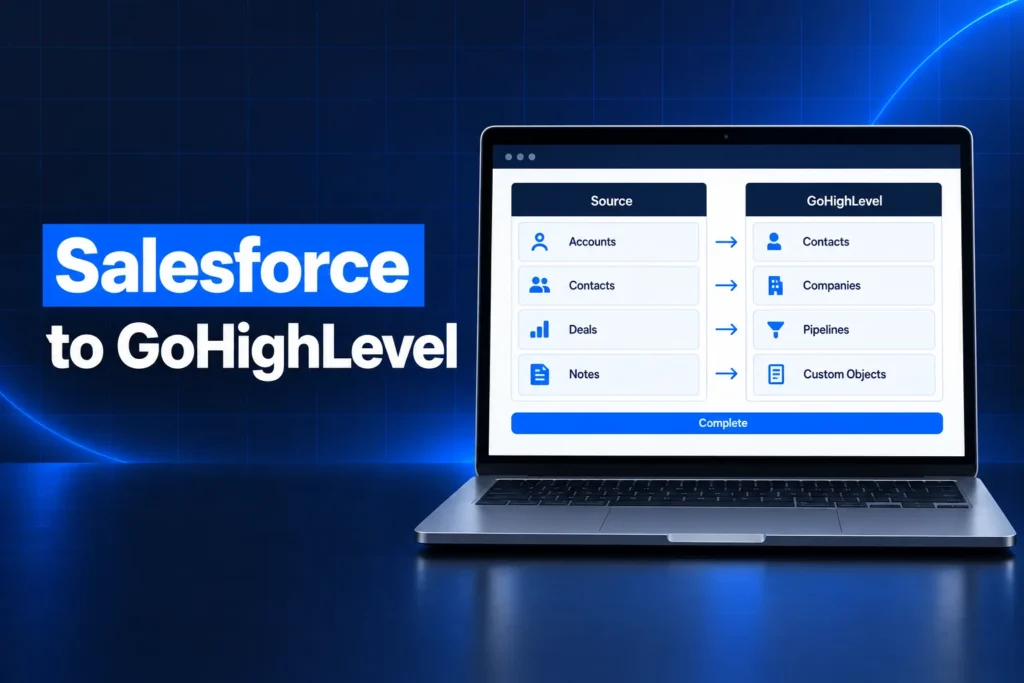
A Salesforce to GoHighLevel migration moves your accounts, contacts, leads and opportunities out of Salesforce as CSV files, maps them onto GoHighLevel’s contacts, companies, pipelines and custom objects, and then rebuilds the automations and integrations Salesforce used to run. The data moves in days; the planning around fields, history and automations decides whether it works.
This guide covers whether you should switch at all, how Salesforce objects map to GoHighLevel, what happens to activity and email history, how to export and import cleanly, which automations and integrations need rebuilding, and the realistic timeline, cost drivers and risks. It is written for US service businesses and small sales teams leaving Salesforce for an all-in-one platform.
Is a Salesforce to GoHighLevel migration right for you?
You should switch from Salesforce to GoHighLevel when your team mainly needs lead capture, follow-up by SMS and email, booking and a simple sales pipeline, and you pay for Salesforce depth you never use. Stay on Salesforce if you rely on complex territory rules, CPQ, heavy custom Apex or enterprise reporting.
The two platforms are built for different jobs. Salesforce is a highly configurable relational database with a CRM on top. GoHighLevel is a contact-centric marketing and sales system with phone, SMS, email, calendars, forms, websites and automation in one sub-account.
| Need | Better fit | Why |
|---|---|---|
| Fast lead response by text and call | GoHighLevel | Phone (LC Phone), SMS, email and the unified inbox are native. |
| Booking and reminders | GoHighLevel | Calendars and reminders are built in, with no extra app. |
| Funnels, forms and websites | GoHighLevel | Pages and forms write straight into the CRM. |
| Complex quoting (CPQ) and approvals | Salesforce | Deep configuration and approval logic. |
| Large sales orgs with territories | Salesforce | Role hierarchy and sharing rules at enterprise scale. |
| Heavy custom code and many related objects | Salesforce | A relational model with unlimited custom objects by edition. |
If your answer is mixed, a third option exists: keep Salesforce as the system of record and connect GoHighLevel for marketing and follow-up through GoHighLevel API and webhook integrations. That is an integration project, not a migration, and it is often the cheaper path for larger teams.
How do Salesforce objects map to GoHighLevel?
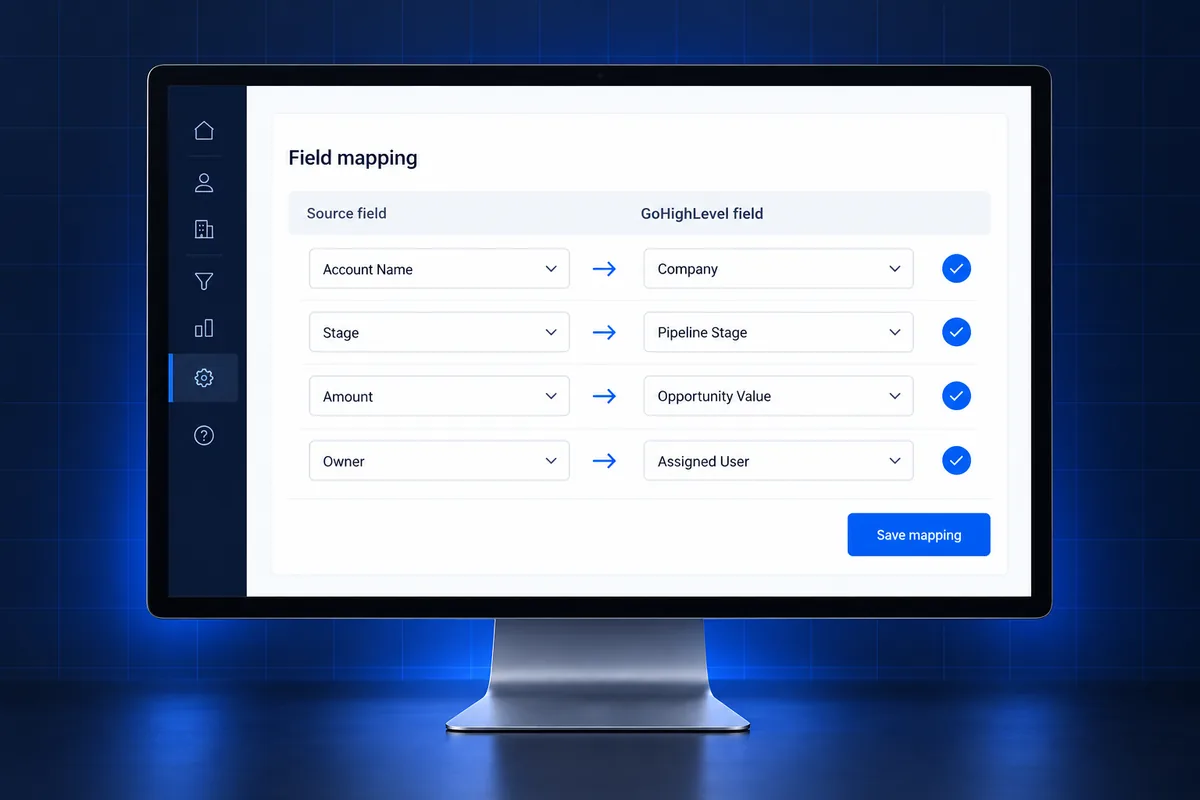
Salesforce objects map to GoHighLevel by purpose, not by name. Leads and Contacts both become GoHighLevel contacts, Accounts become companies, Opportunities become opportunities in a pipeline, and anything else that matters becomes a custom object or custom fields. Deciding this map before exporting is the most important step of the whole project.
| Salesforce | GoHighLevel | Notes |
|---|---|---|
| Leads | Contacts (tagged as leads) | Use a tag or custom field for lead status so you can still filter unconverted leads. |
| Contacts | Contacts | Email or phone is the match key; merge duplicates between Leads and Contacts first. |
| Accounts | Companies | Associate each contact to its company after import. |
| Opportunities | Opportunities | Each one needs a contact, a pipeline and ideally a stage. |
| Stages and sales processes | Pipelines and stages | Create them in GoHighLevel before importing; the CSV cannot create pipelines. |
| Owners (users) | Assigned users | Create every user first so assignment maps cleanly. |
| Custom objects (e.g. Properties, Policies) | Custom objects | Up to 10 per sub-account on all plans, per HighLevel’s help center. |
| Tasks, events, emails | Notes, tasks or an archive | See the history section below. |
Custom fields and picklists
Every Salesforce field you keep needs a matching GoHighLevel custom field before import. Picklists become dropdown fields with the same values, spelled exactly the same. Opportunity fields must be created on the opportunity object, because HighLevel’s import guide notes that contact custom fields do not apply to opportunity imports.
Relational data and custom objects
Salesforce lets one record relate to many others through lookups and junction objects. GoHighLevel handles this with custom objects and associations. HighLevel’s help center says custom objects are available on every plan, with up to 10 objects per sub-account and up to 300,000 records per object, and records can be associated during import through a published workflow.
- Flatten what you can: many lookups only exist to show one value, which a custom field can hold.
- Keep custom objects for data you truly report or automate on, such as properties, policies or vehicles.
- Carry the Salesforce record ID into a custom field on every record, so you can match and fix rows later.
New to GoHighLevel? Try it free for 30 days
HighLevel's standard free trial is 14 days. Through our partner link you get 30 days plus HighLevel's free onboarding bootcamp. Rather have it built for you? Our US team sets up GoHighLevel accounts, websites, funnels and automations.
Partner link: we may earn a commission at no extra cost to you. Disclosure
What happens to activity and email history?
Activity and email history is the part of a Salesforce to GoHighLevel migration that does not move one-to-one. GoHighLevel’s CSV importers are built for contacts, opportunities and custom object records, so logged calls, tasks and old email threads usually arrive as notes, a summary field or an archived export, not as live conversations.
Decide how much history the team really uses. Most sales teams look at the last few touches, the deal notes and the reason a deal was lost, not every email from five years ago.
- Recent notes: bring the last notes and next steps into a long-text custom field or contact notes.
- Open tasks: recreate open follow-ups as GoHighLevel tasks assigned to the right user.
- Old activity and email: keep the full Salesforce export as an archive the owner controls, instead of forcing it into the CRM.
- Attachments and files: export them separately and store them where the team can find them; they are not part of a CSV import.
How do you export from Salesforce and import into GoHighLevel?
You export from Salesforce with the Data Export tool under Setup or with reports and Data Loader, which produce CSV files, and you import into GoHighLevel with the contact, opportunity and custom object CSV importers. Contacts and companies go in first, then opportunities that reference them, then custom objects and associations.
Exporting from Salesforce
- Data Export: an admin runs it from Setup; Salesforce emails a link to ZIP files of CSVs. Weekly exports are limited to Enterprise, Performance and Unlimited editions; lower editions can export every 29 days, so plan a final export date.
- Download promptly: export links expire after a short window, so download and store the files the day they arrive.
- Reports or Data Loader: useful when you only need certain objects or fields, or a fresh delta before cutover.
Importing into GoHighLevel
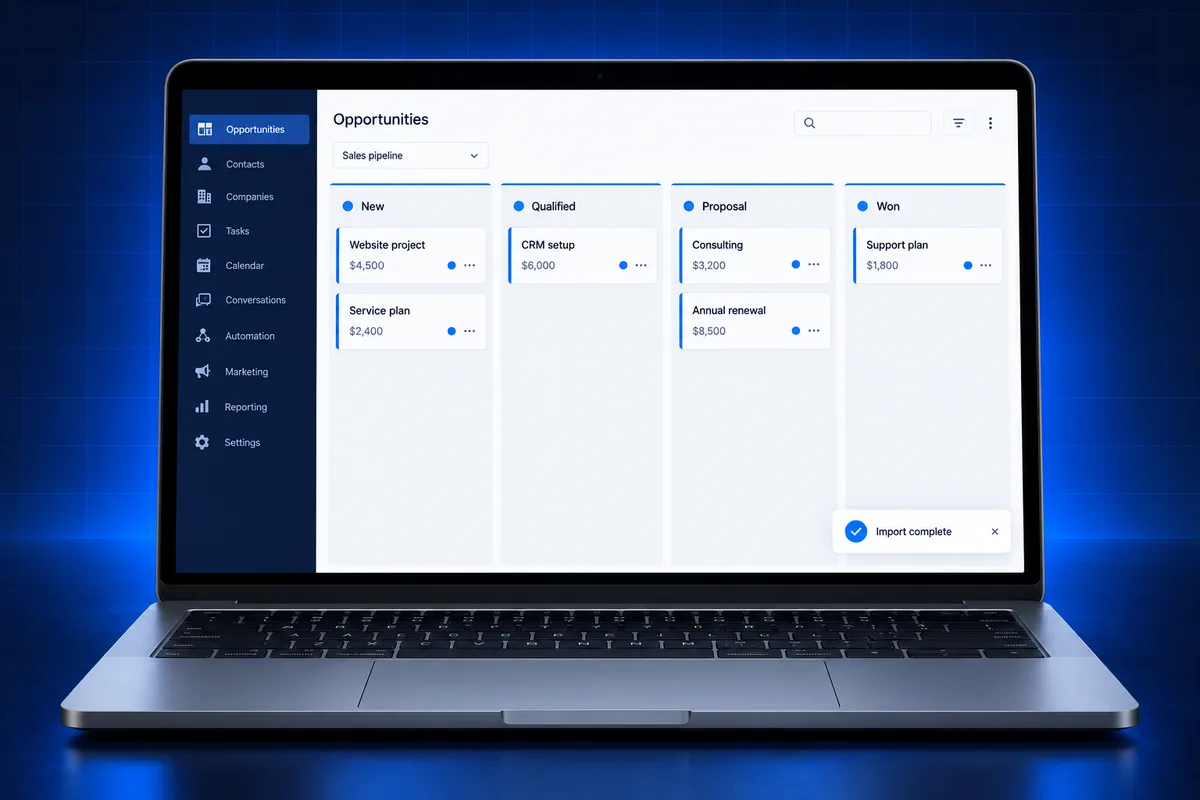
HighLevel’s import guide sets clear rules for opportunities. The file must be a CSV under 30 MB; each opportunities-only row needs a Contact ID, an opportunity name and an existing pipeline; supported statuses are Open, Won, Lost and Abandoned. A combined “Contacts + Opportunities” import also exists for simpler data.
- Create users, pipelines, stages, tags and every custom field before the first import.
- Clean phone numbers and remove duplicate rows; duplicates are much harder to fix after import.
- Test with a few hundred rows in the real sub-account and check the Bulk Actions error log.
- Completed imports have no one-click undo, according to HighLevel, so fix and re-import only failed rows.
Large or messy data sets often go faster through the GoHighLevel API than through repeated CSV rounds, especially when records need associations. That is the kind of job our integrations team handles, including associations and error handling.
Which automations and integrations need rebuilding?
Every Salesforce automation needs rebuilding in GoHighLevel, because Flows, process rules, Apex triggers and validation rules do not export into another platform. Integrations built on Salesforce, such as form tools, payment apps or dialers, also need to be reconnected to GoHighLevel or replaced by native features.
Start by listing what each automation achieves, not how it is built. Many Salesforce automations exist only to glue together tools that GoHighLevel already includes.
| Salesforce setup | GoHighLevel equivalent |
|---|---|
| Flows and process rules | Workflows with triggers and actions |
| Web-to-Lead forms | Native forms, surveys and funnels |
| Email templates and sequences | Email templates, campaigns and LC-Email sending |
| Third-party SMS or dialer apps | LC Phone calling and SMS, with A2P 10DLC registration |
| Scheduling add-ons | GoHighLevel calendars and reminders |
| Apex and outbound messages | Webhooks and the GoHighLevel API |
| Reports and dashboards | Opportunity, attribution and custom dashboards |
Texting and email compliance after the move
Texting from GoHighLevel to US numbers requires A2P 10DLC brand and campaign registration with The Campaign Registry before messages deliver reliably. Email needs a dedicated sending domain with DKIM, SPF and DMARC records. Neither carries over from Salesforce, so book both early; our A2P 10DLC registration service covers the texting side.
Only message contacts who gave consent. Imported records do not bring proof of opt-in with them, so keep consent source and date as a custom field. This is general information, not legal advice; confirm your situation with counsel.
How long does the migration take and what does it cost?
A Salesforce to GoHighLevel migration usually takes a few weeks for a small team, and longer when there are custom objects, many integrations or years of messy data. Cost follows the same drivers: the number of objects and fields, the data cleanup, the automations to rebuild and the integrations to reconnect.
- Discovery: inventory objects, fields, automations, integrations, users and reports.
- Mapping: agree the object and field map and what history to archive.
- Build: pipelines, custom fields, custom objects, calendars, phone, email domain and A2P.
- Test import: a sample of each object, checked by the people who use it.
- Automations and integrations: rebuilt and tested end to end.
- Cutover: final export, full import, a freeze on Salesforce edits, and team training.
Our plans and setup fees are listed on the GoHighLevel USA pricing section. Fixed prices only make sense after discovery, because two companies with the same number of contacts can have very different Salesforce setups.
What are the most common Salesforce migration mistakes?
The most common Salesforce migration mistakes are importing before pipelines and custom fields exist, skipping deduplication between Leads and Contacts, losing the link between opportunities and their contacts, and switching texting on before A2P registration. Each one creates bad data that is slower to fix than to prevent.
- No record IDs carried over: without the Salesforce ID in a custom field, matching and fixing rows later is guesswork.
- Every field migrated: old orgs carry hundreds of unused fields; migrate what the team uses.
- Owner mapping skipped: deals land unassigned and nobody follows up.
- Double running: both systems stay live for weeks and the data drifts apart.
- Automations copied literally: rebuilding Salesforce logic step by step instead of using GoHighLevel’s native features adds complexity.
- Compliance ignored: texting imported lists without consent records or registration risks filtering and complaints.
Moving from other platforms follows the same logic; see our guides on migrating a WordPress site to GoHighLevel and the GoHighLevel migration FAQs.
What should you check after the migration?
After the migration, check record counts against the Salesforce export, open opportunities by stage and value, owner assignment, custom field values on a sample, and every rebuilt automation and integration with test data. A short audit in the first week catches problems while the Salesforce export is still fresh.
- Contact, company and opportunity counts match the export, minus intentional removals.
- Pipeline totals by stage match the last Salesforce pipeline report.
- A test lead from each form and source lands in the right pipeline and gets the right follow-up.
- Phone numbers, SMS and email send and deliver from the new account.
- Users only see what their role should see.
If you want a second pair of eyes, our sub-account audit and rebuild service reviews migrated accounts for broken triggers, missing fields and data gaps.
Stuck halfway through a Salesforce migration?
A stalled Salesforce migration usually means data is in GoHighLevel but the team does not trust it: duplicate contacts, orphaned opportunities, or automations that fire on the wrong records. Fixing it starts with an honest audit of what imported and what did not, before anyone imports again.
We map the data, finish the import through the API where CSV rounds failed, and reconnect the systems your team depends on. See all GoHighLevel USA services to plan your Salesforce data move, or ask a quick question and message us on WhatsApp.
Frequently Asked Questions
Can GoHighLevel import directly from Salesforce?
GoHighLevel has no one-click Salesforce importer for full CRM data. The standard route is exporting CSV files from Salesforce with Data Export, reports or Data Loader, then importing contacts, opportunities and custom object records through GoHighLevel’s CSV importers. Larger or relational data sets are often moved through the GoHighLevel API for better control and error handling.
Do Salesforce opportunities transfer with their stages?
Yes, if the pipelines and stages already exist in GoHighLevel before the import. HighLevel’s opportunity import requires a contact ID, an opportunity name and an existing pipeline for each row, and the stage must exist in that pipeline. Map Salesforce stage names to GoHighLevel stages first, and carry deal value and status across.
Will my Salesforce email history move to GoHighLevel?
Not as live conversation threads. GoHighLevel’s importers focus on records and fields, so old Salesforce emails and logged activities are normally summarized into notes or a custom field, or kept as an archived export. New conversations by SMS, email and calls then build up in the GoHighLevel unified inbox from cutover onward.
Does GoHighLevel support Salesforce-style custom objects?
Yes, within limits. HighLevel’s help center states custom objects are available on all plans, with up to 10 custom objects per sub-account and up to 300,000 records per object. Records can be associated with contacts, companies and opportunities, so most small-business Salesforce objects fit, though complex junction-object designs may need simplifying.
How long does a Salesforce to GoHighLevel migration take?
A small team with standard objects can often move within a few weeks, including the build, test imports and training. Timelines grow with custom objects, years of messy data, many integrations and the number of automations to rebuild. Discovery and field mapping take the most thought; the actual import is usually the quickest step.
Can I keep Salesforce and use GoHighLevel for marketing?
Yes. Many teams keep Salesforce as the system of record and connect GoHighLevel for lead capture, SMS, email and booking through webhooks or the API. New leads and outcomes sync between the two systems. This avoids a full migration but adds an integration that needs monitoring, so document what syncs and in which direction.