
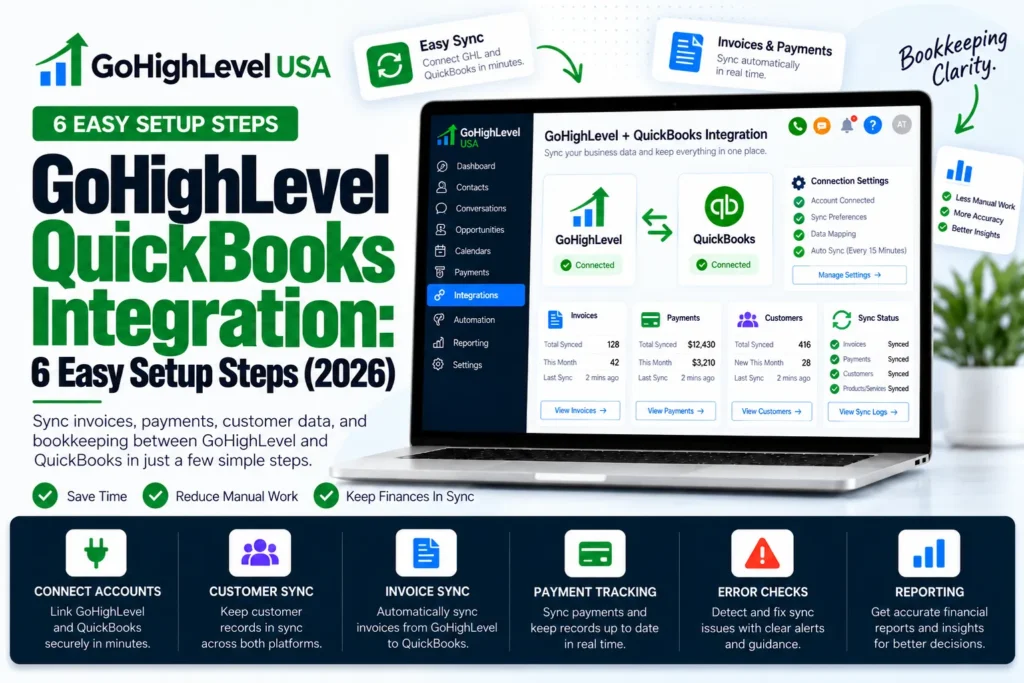
The GoHighLevel QuickBooks integration is a native connection that links your HighLevel account to QuickBooks Online. It sends invoices, payments and customers from HighLevel into your books, and it pulls contacts from QuickBooks back into your CRM.
In this guide you will learn how to set up the GoHighLevel QuickBooks integration in 6 easy steps. You will also see what syncs, what does not, how to fix common problems and how US service businesses use it every day.
What Is the GoHighLevel QuickBooks Integration?
HighLevel is a sales and marketing platform. QuickBooks Online is accounting software made by Intuit. On their own, they do not talk to each other, so someone has to type the same data twice. The GoHighLevel QuickBooks integration fixes that.
It is built right into the HighLevel settings, so you do not need Zapier or any paid connector to get the basic sync working.
Think of it as a bridge. Your team sells and sends invoices inside HighLevel. Your bookkeeper sees clean records inside QuickBooks without copying anything by hand.
Does It Work With QuickBooks Desktop?
No. The native connection is made for QuickBooks Online. If you still use QuickBooks Desktop, you would need a third party tool or a move to the online version first.
Why Should US Service Businesses Use It?
Most local service companies run on small teams, and the GoHighLevel QuickBooks integration helps them do more with less. Every hour spent on data entry is an hour not spent on customers. The sync cuts double entry, reduces typos and makes month end simpler. Here is what the sync gives you:
- Less double entry. Invoices you send in HighLevel show up in QuickBooks.
- Fewer mistakes. Numbers, taxes and discounts move over as they are, so typos drop.
- Faster bookkeeping. Payments land as sales receipts, which makes month end simpler.
- More reviews. HighLevel can ask a client for a review once their first invoice is fully paid.
For a roofer, a med spa or a law office, that means the front desk and the bookkeeper finally see the same picture.
New to GoHighLevel? Try it free for 30 days
HighLevel's standard free trial is 14 days. Through our partner link you get 30 days plus HighLevel's free onboarding bootcamp. Rather have it built for you? Our US team sets up GoHighLevel accounts, websites, funnels and automations.
Partner link: we may earn a commission at no extra cost to you. Disclosure
What Do You Need Before You Start?
Before you start, you need admin access to a HighLevel sub account, an active QuickBooks Online subscription and its admin login. Decide whether old invoices should be imported. Get these things ready before you turn on the GoHighLevel QuickBooks integration. It will save you time and stop the connection from failing halfway.
- A HighLevel sub account where you have admin access.
- An active QuickBooks Online subscription.
- Admin login details for QuickBooks Online.
- A clear plan for old invoices: do you want them imported or not?
If you manage many client accounts, set up the GoHighLevel QuickBooks integration inside each sub account. Each business connects to its own QuickBooks company.
How to Set Up the GoHighLevel QuickBooks Integration in 6 Steps
You set up the GoHighLevel QuickBooks integration from Settings, then Integrations, then the QuickBooks card and QB Connect. These steps follow the official HighLevel help guide on setting up QuickBooks. Menu names can change a little over time, so check that page if your screen looks different.
- Open Settings. Log in to the sub account and click Settings in the bottom left menu.
- Go to Integrations. Find the Integrations tab and look for the QuickBooks card.
- Click QB Connect. This button starts the connection.
- Choose your options. Turn the toggle on if you want to import older invoices. You can also turn on review automation here.
- Sign in to QuickBooks. Use your QuickBooks Online login and pick the right company.
- Accept all permissions. Approve every permission request and click Connect to finish.
Once it says connected, send a small test invoice to yourself. Then check QuickBooks to confirm it arrived.
What Data Syncs With the GoHighLevel QuickBooks Integration?
The GoHighLevel QuickBooks integration moves data in both directions, but not the same data each way. Customers, payments and invoices go from HighLevel to QuickBooks, while contacts come back from QuickBooks. This table sums it up based on the official HighLevel documentation.
| Data Type | Direction | When It Syncs |
|---|---|---|
| Customers | HighLevel to QuickBooks | Created when there is sales activity, like an invoice or payment |
| Payments | HighLevel to QuickBooks | Saved as sales receipts from order forms, subscriptions, memberships and calendar bookings |
| Invoices | HighLevel to QuickBooks | Created and updated once marked as Sent, Pending or Paid |
| Products and services | HighLevel to QuickBooks | Sent as line items on each invoice |
| Contacts | QuickBooks to HighLevel | Existing and new contacts, with a delay of up to 5 minutes |
| Old invoices | QuickBooks to HighLevel | Imported only if you turned on the import toggle |
What Invoice Details Move Over?
Each synced invoice carries its number, status, issue date, due date and contact details. It also brings line items, taxes and discounts, so the totals match in both tools.
How Does the Review Request Work?
If you turned on review automation, HighLevel watches QuickBooks invoices. When a client’s first invoice reaches a zero balance, HighLevel can send them a review request automatically.
What Are the Limits of the GoHighLevel QuickBooks Integration?
The main limits of the GoHighLevel QuickBooks integration are that draft invoices do not sync, invoices made before you connected stay put and imports run one way only. No tool does everything. Knowing these limits now will save you confusion and cleanup work later.
- Draft invoices do not sync. Only Sent, Pending or Paid invoices go to QuickBooks.
- Old HighLevel invoices stay put. Invoices made in HighLevel before you connected will not be sent.
- Imports are one way. If you edit an imported QuickBooks invoice inside HighLevel, the change does not go back to QuickBooks.
- QuickBooks Online only. Desktop versions are not supported natively.
- Contact sync is not instant. New QuickBooks contacts can take up to 5 minutes to appear.
If you need deeper syncing, such as custom fields or expense data, a tool like Zapier can fill the gap. Plan that with your accountant first.
How Do You Fix Common GoHighLevel QuickBooks Integration Problems?
Most GoHighLevel QuickBooks integration problems have simple causes: a draft invoice, a customer that differs between systems or a dropped connection. Work through this checklist before you contact support. Each check takes a minute and fixes most sync failures without a ticket.
- Check the invoice status. A Draft invoice will never sync. Mark it as Sent and wait a moment.
- Check the customer. Make sure the customer exists in both systems with the same name and email.
- Check the connection. Go back to Settings and Integrations. If QuickBooks shows disconnected, click QB Connect again.
- Check permissions. If you skipped any permission during setup, reconnect and accept all of them.
- Check the company. Confirm you linked the right QuickBooks company, not a test or old one.
If the problem stays, open a ticket with HighLevel support and share the invoice number. Screenshots help them solve it faster.
Quick Summary Before You Connect
The GoHighLevel QuickBooks integration is built in, works with QuickBooks Online and syncs invoices only after they leave Draft status. Payments become sales receipts, and contacts come back within minutes. Here are the main points in one place. Save this list so your team can check it during setup.
- The GoHighLevel QuickBooks integration is built into HighLevel and works with QuickBooks Online.
- Invoices sync only after they leave Draft status.
- Payments become sales receipts in QuickBooks.
- Contacts come back from QuickBooks within about 5 minutes.
- Old invoices can be imported from QuickBooks, but edits stay in HighLevel.
Keep these rules in mind and the GoHighLevel QuickBooks integration will run smoothly for months.
Real Use Cases for US Service Businesses
Home services, med spas, clinics and other local businesses each use the GoHighLevel QuickBooks integration a little differently. Deposits, memberships and invoices all land in QuickBooks without retyping. Here is how different local businesses can put the GoHighLevel QuickBooks integration to work.
Home Services
A plumbing company books jobs on the HighLevel calendar. When a customer pays a deposit, it lands in QuickBooks as a sales receipt. The office manager no longer types each deposit by hand.
Med Spas and Clinics
A med spa sells memberships through HighLevel. Each recurring payment syncs to QuickBooks, which makes monthly revenue easy to track for the owner and the accountant.
Agencies and Consultants
A marketing agency sends project invoices from HighLevel. When the first invoice is paid in full, the client gets a review request. That builds social proof with zero extra work.
Legal and Professional Services
A small law office imports past QuickBooks invoices into HighLevel during setup. Now the team can see a client’s billing history right inside the CRM before a call.
Best Practices to Keep Your Books Clean
A good GoHighLevel QuickBooks integration setup today prevents a messy cleanup later. Use the same product names and tax rates in both tools, review new customers weekly and send invoices from one place. Follow these simple habits, and your books stay clean month after month.
- Use the same product and service names in both tools.
- Set up tax rates in HighLevel the same way your accountant set them in QuickBooks.
- Review new QuickBooks customers each week to catch duplicates early.
- Send invoices from one place, HighLevel, so you do not create doubles.
- Ask your bookkeeper to spot check a few synced invoices each month.
You can learn more about features and plans on the official QuickBooks Online page. For pricing, check their pricing page since it changes often.
Should You Set It Up Yourself or Get Help?
The basic connection takes only a few minutes. The harder part is everything around it: workflows, payment forms, tax settings and review automations that all need to fit together. If you want an expert to wire it up, our GoHighLevel API and integrations service can map your billing flow and test every sync.
Final Thoughts
The GoHighLevel QuickBooks integration is one of the easiest ways to stop double data entry. Invoices, payments and customers flow into QuickBooks Online, and contacts flow back into your CRM. Your next step is simple. Connect your account using the 6 steps above, then send one test invoice to make sure everything works.
Want it done right the first time? Our team offers a full done for you GoHighLevel setup for US service businesses, including billing, workflows and integrations. Reach out when you are ready, and we will handle the heavy lifting.