
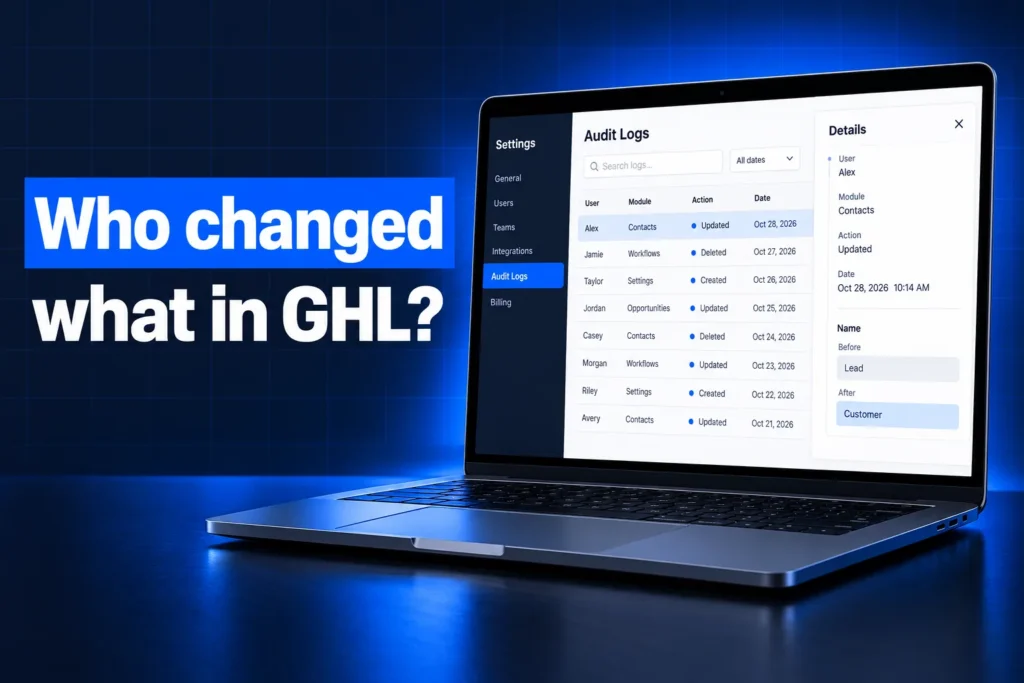
GHL audit logs are GoHighLevel’s time-stamped record of who changed what in your account. They show the user, the module, the action (created, updated or deleted) and the before and after values, for up to 60 days. Agency logs and sub-account logs are separate, and each lives under Settings, then Audit Logs.
This guide covers what HighLevel audit logs record, where to find them, how to trace a deleted contact, opportunity or page, how to spot risky user access, and what the logs can’t tell you. It is written for US business owners and agencies who need answers fast when something in a GoHighLevel account changes without warning.
What do GHL audit logs record?
GHL audit logs record key actions taken in a GoHighLevel agency or sub-account: creates, updates and deletes across modules such as users, contacts, opportunities, websites and funnels, custom objects and Conversation AI. Each entry carries a timestamp, the user or system that acted, and the field-level details of the change.
HighLevel calls audit logs the source of truth for who did what and when. In practice, an entry answers four questions:
- Who: the team member, or the system source, such as a workflow, an API integration or HighLevel’s support tools.
- What: the module and record affected, for example a contact, an opportunity or a funnel step.
- How: the action type, which is create, update or delete.
- Exactly what changed: the details drawer shows the fields that changed, with before and after values.
Coverage keeps growing. HighLevel’s help center documents audit entries for these areas:
| Area | What gets logged |
|---|---|
| Users and accounts | User creation, edits and deletions, plus account-level changes |
| Contacts and opportunities | Field changes and deletions, including changes made by workflows or the API |
| Funnels, websites, webinars and stores | Page and step edits, funnel settings changes, split test winners, stats resets and deletions |
| Page Builder assets | Deleted section templates, global sections, universal sections and element templates |
| Conversation AI | An agent being turned on, turned off, paused or reassigned |
| Notification preferences | Changed preferences with before and after values (sub-account only) |
| Labs feature flags | Features switched on or off at company or location level |
HighLevel also has separate audit articles for WhatsApp, email preferences and subscriptions, custom objects and listings. If your question involves one of those areas, check the module filter first.
Where do you find audit logs in GoHighLevel?
GoHighLevel audit logs live in two places. Agency-wide activity is at Agency, then Settings, then Audit Logs. Sub-account activity is at Sub-Account, then Settings, then Audit Logs. Each view shows only its own scope, so a change inside one client’s sub-account never appears in the agency view.
That split matters when you investigate. Use this rule of thumb:
- Agency view: team members added or removed at agency level, account changes and agency settings.
- Sub-account view: contacts, opportunities, funnels and websites, Conversation AI and notification preferences for that one business.
- Contact level: for Conversation AI, a contact’s own audit history is also available from Conversations, then Contact Details, then Audit logs.
Access depends on role. HighLevel says agency logs are available to Agency Admins, and sub-account logs are typically available to Account Admins. If a team member can’t see the menu, check their role before assuming the feature is missing.
New to GoHighLevel? Try it free for 30 days
HighLevel's standard free trial is 14 days. Through our partner link you get 30 days plus HighLevel's free onboarding bootcamp. Rather have it built for you? Our US team sets up GoHighLevel accounts, websites, funnels and automations.
Partner link: we may earn a commission at no extra cost to you. Disclosure
How do you filter GHL audit logs quickly?
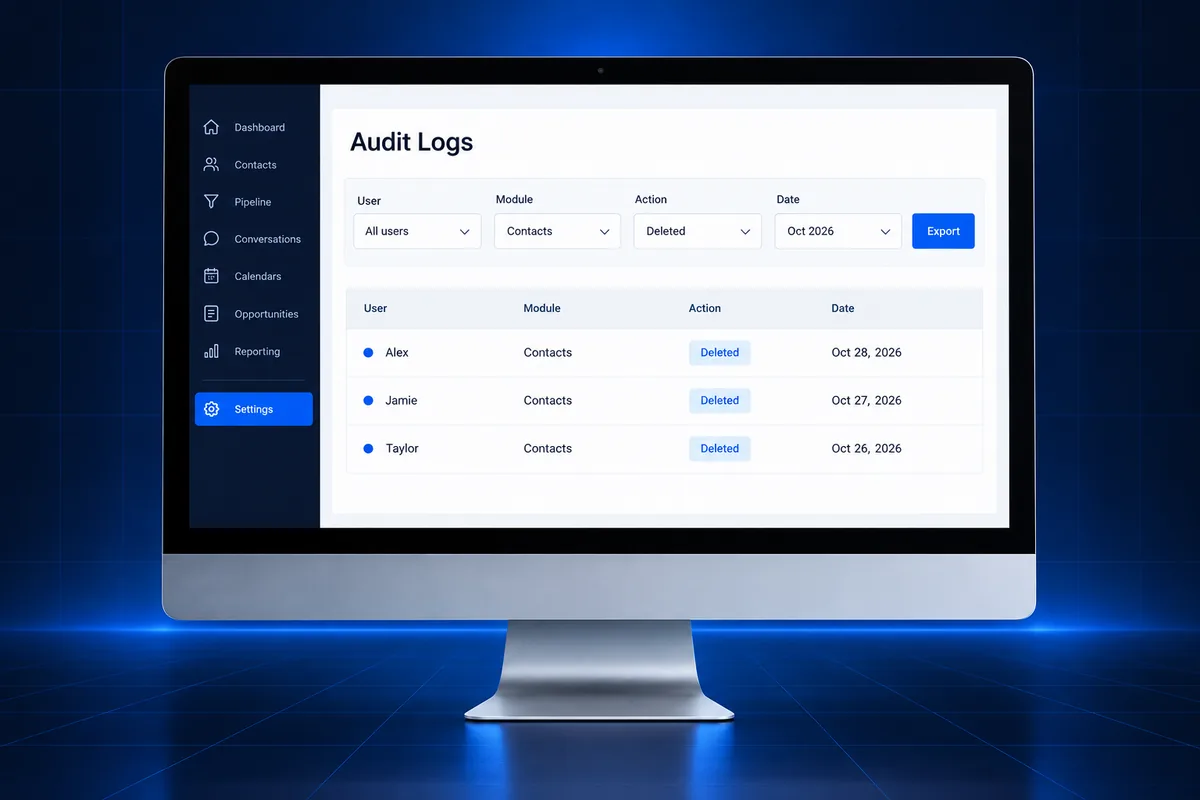
The fastest way to search GHL audit logs is to narrow the date first, then the action and module, then the user. HighLevel offers four filters: User, Module, Action Type and Time Range. Opening a row shows a details drawer, and the arrow keys step through entries without closing it.
- Time Range: set the window when the problem started. The maximum is 60 days.
- Action Type: choose Deleted when something vanished, Updated when something looks different, Created when something new appeared.
- Module: pick the area, such as Contacts, Opportunities, Users or Conversation AI Activity.
- User: narrow to one team member once you have a suspect, or to confirm a change came from a workflow or integration.
Module and action options vary by area, but the User filter is available in both agency and sub-account logs. One small trap: timestamps can look different across devices. HighLevel points to time zone differences, so check your device time zone and the sub-account’s locale before you conclude a change happened “at night”.
How do you trace a deleted contact, opportunity or page?
To trace a deleted record in GoHighLevel, open the sub-account’s audit logs, filter Action to Deleted, choose the module, and set the date range. The entry shows who deleted the record and when. For some modules, such as opportunities, the entry also gives restore options.
What to check, depending on what disappeared:
- Contacts: look for a user name or a system source. A workflow with a delete action or a sync from an outside tool can remove contacts without anyone clicking anything.
- Opportunities and pipelines: HighLevel documents a delete and restore process for these. Find the entry first so you restore the right record.
- Funnel steps and pages: the funnels, websites, webinars and stores logs track step deletes, page edits, step reorders and funnel settings changes, including a settings change where a domain was removed.
- Saved Page Builder assets: a deleted global section or element template gets its own Deleted entry with the asset name and ID.
Work fast. HighLevel keeps audit entries for 60 days and then purges them. If a client tells you about a problem from three months ago, the logs won’t have it unless someone exported them.
How do you find who changed a workflow?
Workflow edits are tracked in the workflow’s own Version History, not mainly in the audit logs. Version History shows each saved version with the editor’s name, the timestamp and the status, draft or published. You can browse the last 10 versions or 30 days and restore an older version as a new draft.
Two details save time here:
- Restoring is safe: a restored version opens as a draft, so the live workflow doesn’t change until someone publishes.
- Auto-save doesn’t create versions: versions are created on a manual save, on a status change, or when someone clicks Save Version. Small edits between saves won’t show as separate entries.
Pair the two tools. Version History shows what changed inside the workflow. The audit logs show what that workflow then did to contacts and opportunities. If you’re chasing automations that misfire rather than edits, our guide to fixing a GoHighLevel workflow that’s not working covers the usual causes.
How do audit logs help you spot risky user access?
Audit logs help you spot risky access by showing every user created, edited or deleted, and by tying each change to a named person. Review the Users module regularly, compare it with the people who should have access, and remove anyone who has left or never needed admin rights.
Patterns worth investigating in any GoHighLevel account:
- A new admin user that nobody on your team remembers adding.
- A contractor or former freelancer who still holds admin access to a sub-account after the project ended.
- Bulk deletes or exports from a user who normally only answers conversations.
- Changes logged in the middle of the night from a user in your own time zone.
- Labs features switched on or off without a request. HighLevel now logs these, and attributes support-made changes to the Support Portal.
Shared logins defeat all of this. If three people use one login, the log can only name the login. Give every person their own user in the agency or sub-account, which is also how a clean GoHighLevel sub-account setup should start.
How should audit logs work with user roles?
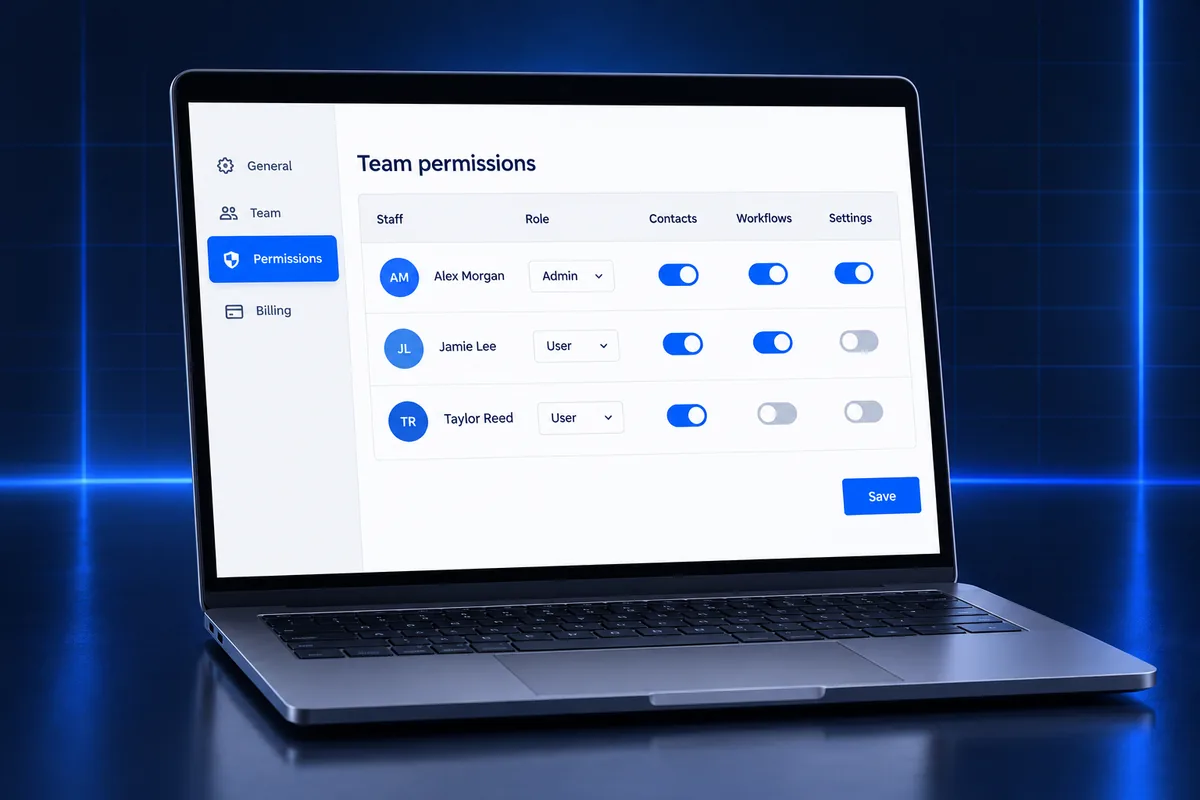
Audit logs record what happened, but user roles decide what can happen. In GoHighLevel, the safest setup gives admin roles to the fewest people possible, gives everyone else user-level access with only the permissions their job needs, and uses the audit logs to confirm that setup holds.
A practical review covers four points:
- Who is an admin: agency admins can reach agency logs and settings, and account admins control a sub-account. Keep both lists short.
- What each user can touch: review permissions for contacts, opportunities, workflows and settings per user.
- Who can export: audit log export uses its own “Export audit logs” permission. A user can be allowed to view logs without being allowed to export them.
- Who has left: remove users the day a staff member or contractor leaves, then confirm the deletion appears in the logs.
Agencies handing a client account over, or taking one back, should run this review at the moment of transfer. Our guide to the GoHighLevel sub-account transfer explains what moves with the account.
Can you export GHL audit logs?
Yes. GoHighLevel can export filtered audit logs to a CSV file. Exports run in the background, each one supports up to 500,000 records, and the finished file stays downloadable for 30 days from an Exports tab. HighLevel released export through Labs, so some accounts must enable it in Agency Settings first.
| Item | What HighLevel documents |
|---|---|
| In-app retention | 60 days, then entries are purged |
| Export format | CSV, using the same filters as the log view |
| Records per export | Up to 500,000 |
| File availability | 30 days after the export completes |
| Permission | A separate “Export audit logs” permission |
| Traceability | Export requests and downloads are logged in the Audit Logs module |
If you need history beyond 60 days for compliance or client disputes, export on a fixed schedule, such as monthly, and store the files somewhere access-controlled. The exported file can contain sensitive operational data, so treat it like a customer list.
What can’t GoHighLevel audit logs show?
GoHighLevel audit logs can’t show anything older than 60 days unless it was exported, can’t separate people who share one login, and don’t explain why a change was made. They also aren’t the place to read message delivery, workflow execution steps or the content a contact received.
- Message delivery: SMS and email outcomes belong to conversations and message logs. Delivery problems often trace back to A2P 10DLC registration or email authentication with DKIM, SPF and DMARC, which we handle through our A2P 10DLC registration service.
- Workflow runs: each workflow keeps its own execution history per contact. Audit logs show the resulting record changes, not each step.
- Intent: a log proves that a user deleted 200 contacts. It can’t tell you whether that was a cleanup or a mistake. Ask before you accuse.
- Every module equally: coverage was rolled out in phases. If an area doesn’t appear in the module filter, assume it isn’t logged there and check that feature’s own history.
For a wider technical health check, our GoHighLevel tech audit checklist covers DNS, email authentication, A2P status and workflow errors alongside access.
When is an account audit the faster fix?
A full account audit is the faster fix when the logs show a pattern rather than one bad change: many users with admin rights, repeated deletes from automations, workflows nobody owns, or a former freelancer’s builds still running. At that point, reading entries one by one costs more than reviewing the whole account.
Signs you’ve reached that point:
- The same records keep changing and nobody knows which workflow does it.
- Several people, or past vendors, have admin access and nobody can say why.
- Snapshots, pipelines and custom fields were added over years with no naming system.
- The problem started more than 60 days ago, so the logs can’t reach it.
Got burned by a GHL freelancer, or inherited an account full of mystery changes? Our GoHighLevel sub-account audit and rebuild reviews users, workflows, triggers, A2P status and data, then gives you a fixed quote to get it working. Plans and setup ranges are on our services and pricing page, and if you want to compare who should run your account long term, read GoHighLevel freelancer vs agency.
Frequently Asked Questions
How long does GoHighLevel keep audit logs?
HighLevel keeps audit log entries for 60 days and then purges them. The time range filter goes back the same 60 days. If you need older history for compliance, disputes or client handovers, export the logs to CSV on a regular schedule, because export files themselves are only available to download for 30 days after they finish.
Who can see audit logs in GoHighLevel?
HighLevel says agency-level audit logs are available to Agency Admins under Agency, Settings, Audit Logs. Sub-account logs are typically available to Account Admins under the sub-account’s Settings, Audit Logs. Exporting is a separate permission, so a user can be allowed to view the logs without being allowed to download them as a CSV file.
Is the GoHighLevel activity log the same as the audit log?
People often say “activity log” when they mean audit logs, the account-wide record of creates, updates and deletes. GoHighLevel also keeps narrower histories: a contact’s activity and conversation history, each workflow’s execution history, and workflow Version History for edits. Use audit logs for who changed what, and those feature histories for what ran or what was sent.
Do audit logs show changes made by workflows or the API?
Yes, for supported modules. HighLevel’s detailed view shows field names, values and the affected module, whether the change came from a manual edit, a workflow or an API integration. That makes the logs useful for finding an automation or outside app that keeps overwriting contact or opportunity fields, which is a common cause of “data keeps changing” complaints.
Can I restore deleted items from GHL audit logs?
Sometimes. HighLevel’s guidance is to filter Action to Deleted, pick the module, and open the entry to reach restore options where they’re supported, such as opportunities. For workflows, use Version History instead, which restores an older version as a new draft. Records past the 60-day window can’t be traced through the logs at all.
Can an agency see sub-account changes in the agency audit log?
No. Agency and sub-account audit logs each show only their own scope. Agency-wide activity sits under the agency’s Settings, and changes inside a client’s sub-account sit under that sub-account’s Settings. To review a client’s contacts, funnels or Conversation AI activity, switch into the sub-account and open its audit logs there.